Your first afternoon out, or your fiftieth city. Five RyokōMates will show you where everything lives, how it works, and what you can bring home. Pick a task, meet your guide, and take the long way when you’re ready.
For iPhone · iOS 26.2 or later · English · Updated for version 1.2.2. Screens are from version 1.2.2, with sample trips and places. See what changed in 1.2.2 →
FIVE TABS · FIVE LOCALSPICK A GUIDE
Each tab has a local who knows it best.
Start here · no itinerary required
Your first afternoon out.
You don’t need a City Pack, a subscription or a perfect plan. An ordinary walk is plenty. Ryokōya records an outing you start; it doesn’t start a travel diary just because you installed it.
01
Make yourself at home
Sign in with Apple. If asked, choose the name you’d like the app to use. Read the location introduction before answering iOS’s permission questions.
02
Give the walk a starting point
Open My Trips and tap Start Now. Prefer a name, an icon or a focus first? Choose New Trip. For screen-off recording, allow location While Using the App or Always, with Precise Location on. Motion & Fitness helps distinguish walking from riding and count your steps.
03
Pocket your phone. Look around.
Walk as usual. Stay somewhere for about a minute and Ryokōya tries to name the stop. You can add a Moment, a note or a photo along the way. Signal and place information vary; a stop can need your help.
04
Give the day its ending
When you’re done, tap End → End Trip. Complete a Quick Review if one appears. Your summary, story and receipt are ready to explore; the trip’s places also gather in Favorites.
Step zero: get the app.Ryokōya is free to download for iPhone with iOS 26.2 or later, and your first afternoon needs no subscription.
Hi, I’m Pon, Tokyo’s RyokōMate! This is where your walks turn into stories. Let me show you how it works.
Your guide · Pon, the shapeshifting tanuki
My Trips is your travel journal. Start a trip when you head out, and Ryokōya records your route, works out the places where you stop, and counts your steps. When you end it, the day becomes a story you can read again and share.
Records your routeNames your stopsTells the story
Try it, step by step
Start a trip
Tap Start Now to begin right away, or New Trip to give it a name, an icon and the kinds of places you care about first.
Walk as usual
Keep your phone in your pocket. Ryokōya draws your route and counts your steps, even with the screen off. Stay somewhere for about a minute and it works out where you are.
Add your own touches
Tap Moment to mark the spot you’re standing on. In the Trip Log, press and hold a stop to add a note, capture a photo or video, or mark it Visited or Passed By.
Fix a wrong name
If Ryokōya picked the wrong place, open the stop and tap Fix, then choose the right one nearby. Fix searches around the original stop, so you choose a nearby place rather than adding a visit from across town.
End the trip
Tap End, then End Trip. If a few stops need a quick look, a Quick Review comes first.
Enjoy the summary
Your stats, the story of the day, the neighborhoods you walked, the map and a playful receipt. Share a trip card, or print the receipt and share that.
Come back anytime
Finished trips are listed by month. Tap one to open it again, or press and hold it to delete it. Once you have two or more, Journeys can tell several trips as one story.
Read it with a local
In a Journey, each city opens its own chapter and its RyokōMate joins the telling: a welcome, a word of the day, a neighborhood story or a postcard goodbye. At places it knows, its facts come from that city’s free starter pack and the packs you own. The Journey and its journal remain free.
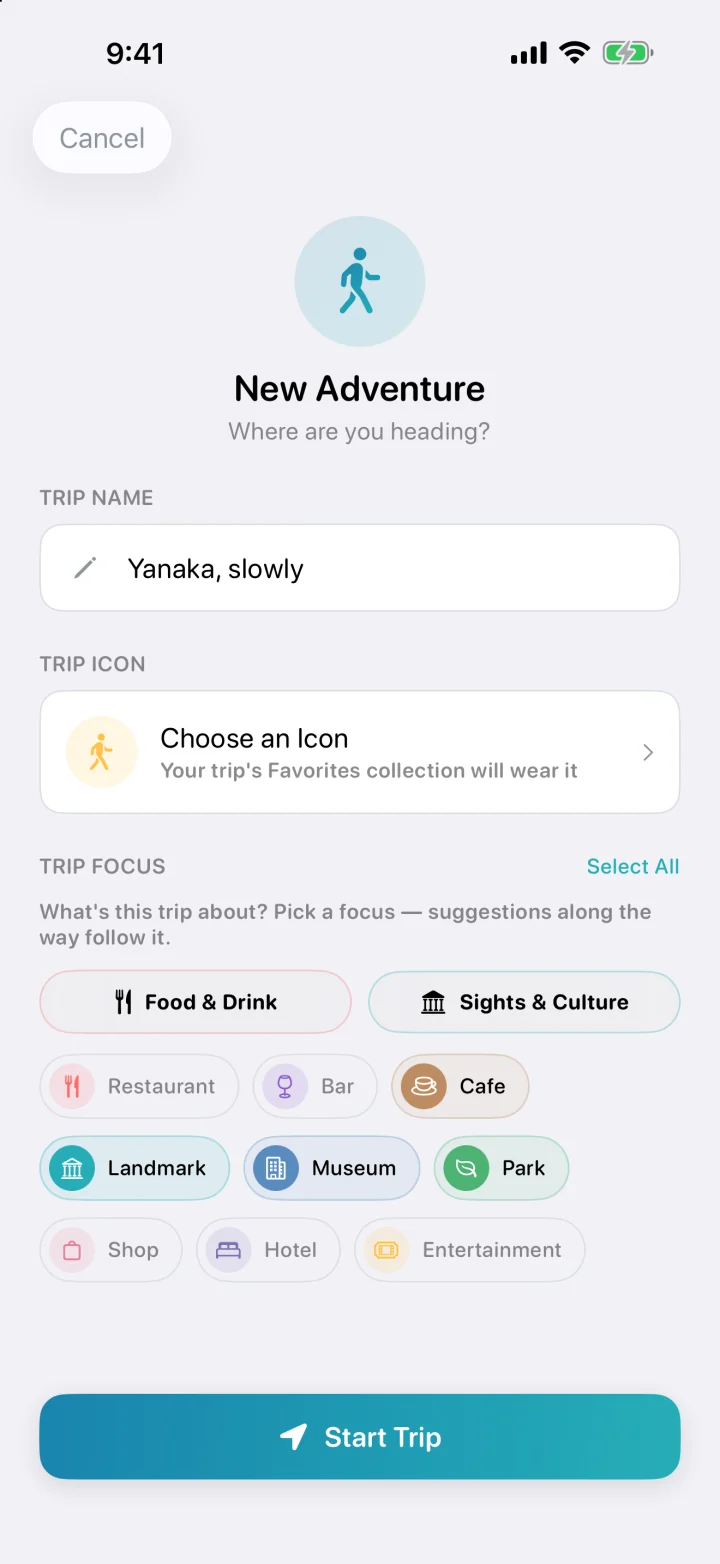
Make this outing yoursNew Trip takes a name, an icon and the kinds of places you care about.
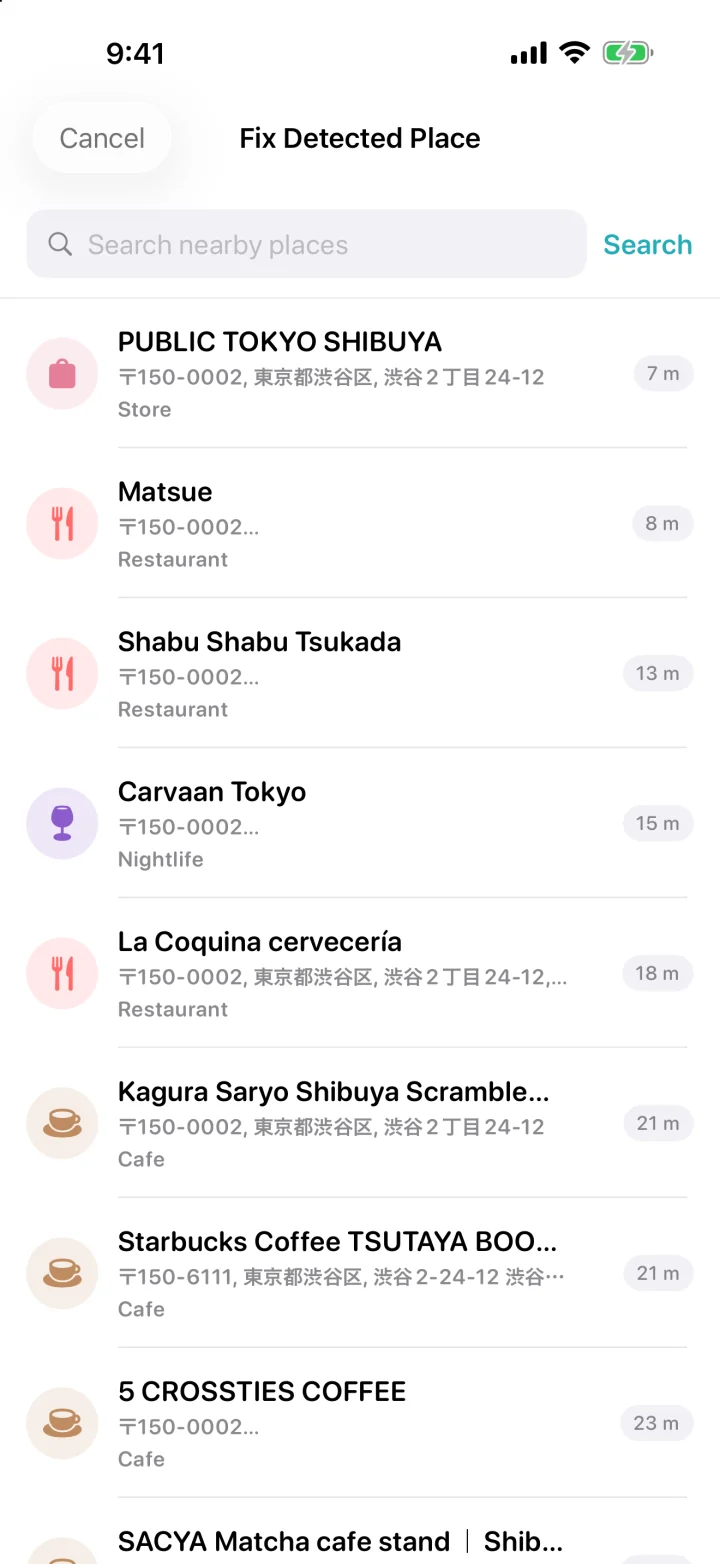
Tell it where you really wereFix searches around the stop itself: here, the places beside Shibuya Scramble Square.
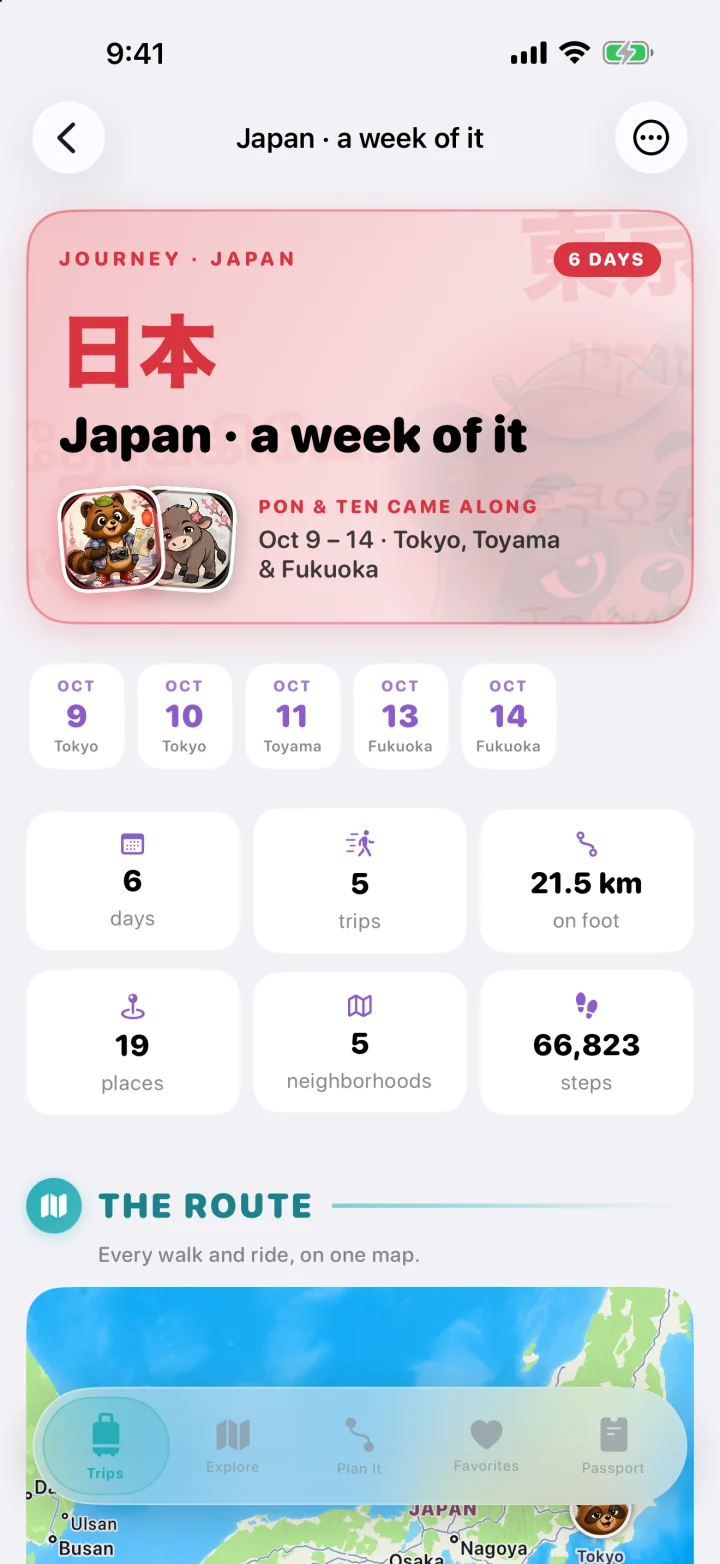
Several days, one JourneyThe sample Japan week: five trips in three cities, with its days, totals and one map.
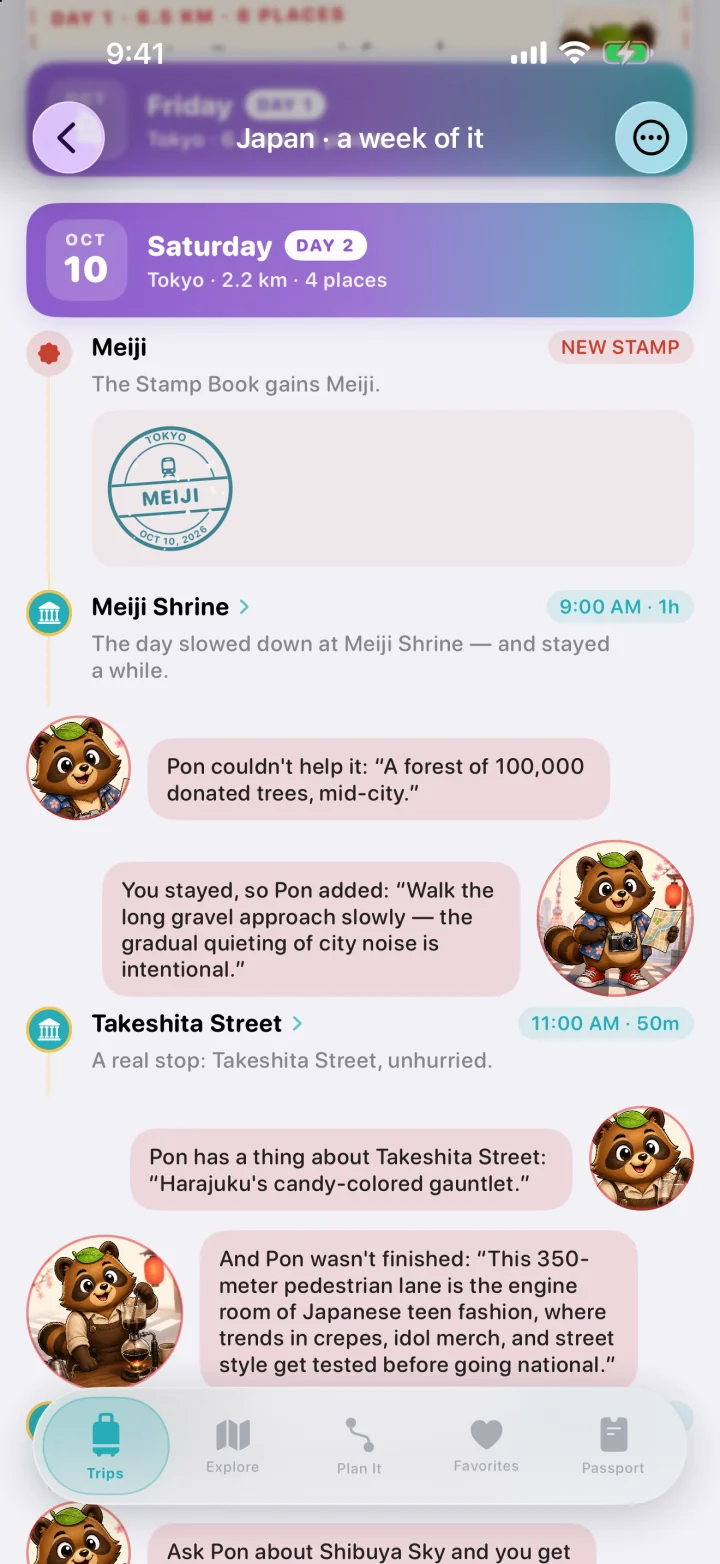
Read it with a localDay 2 in Tokyo, as the journal tells it, with Pon chiming in at Meiji Shrine and Takeshita Street.
Trip Receipts
Your trip, itemized. Payment accepted in steps.
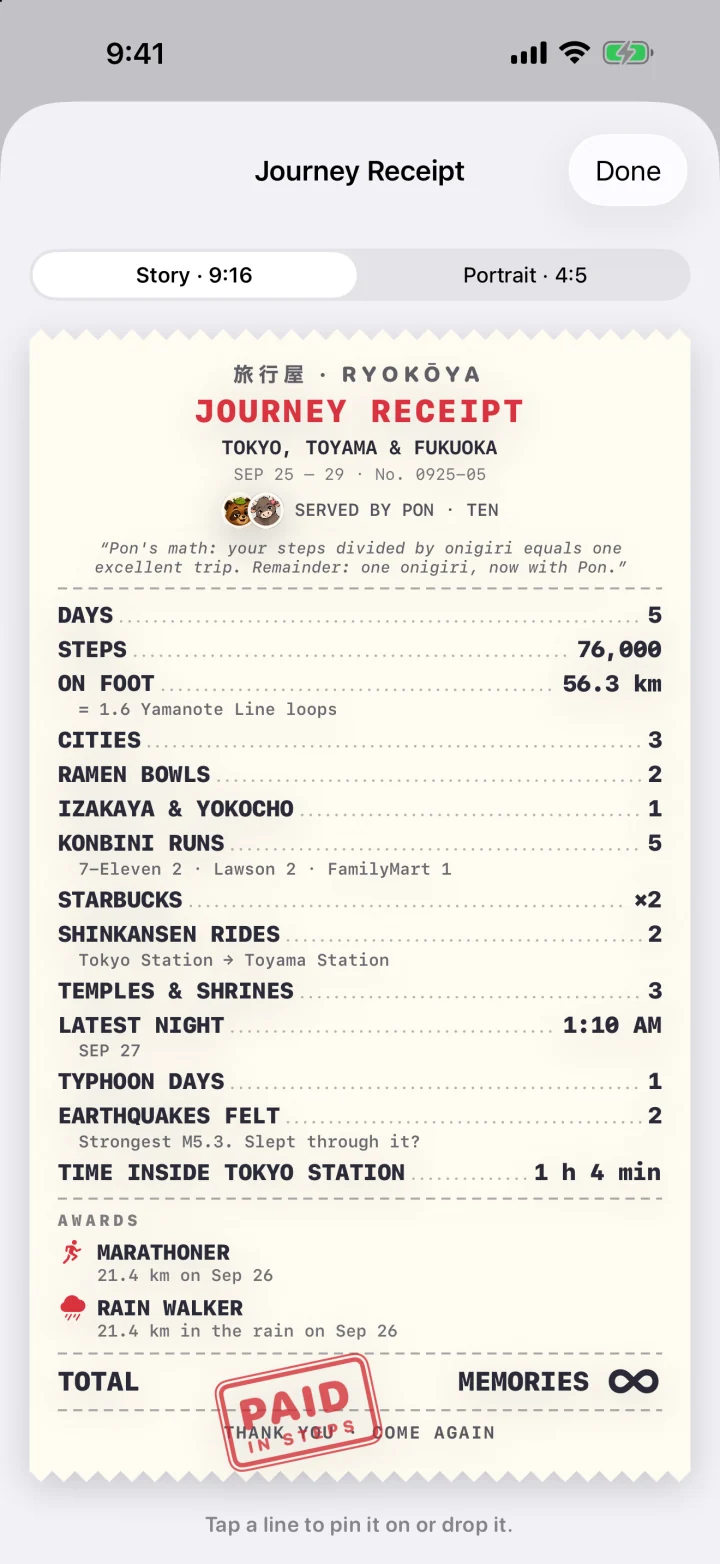
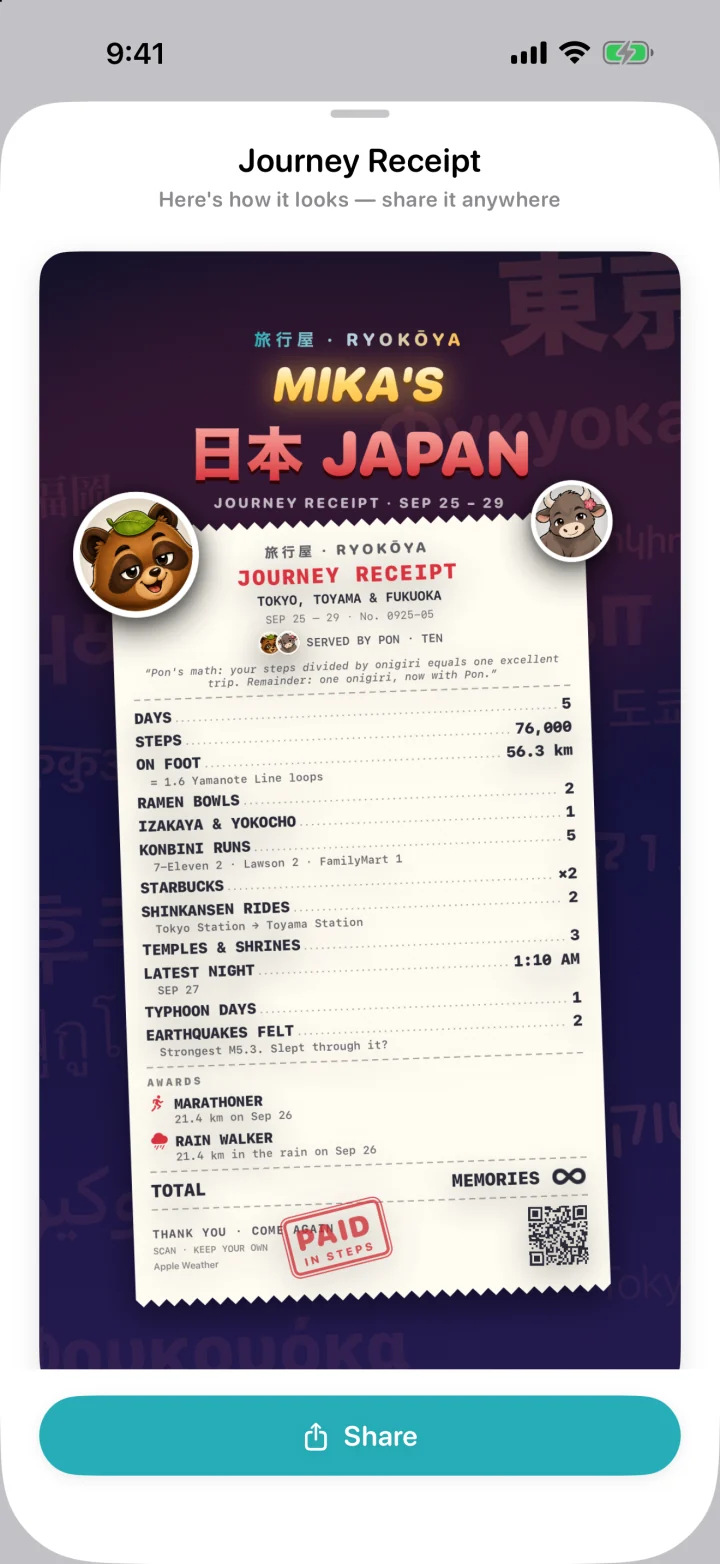
Open a finished trip or Journey, find The Receipt and tap Print the receipt. Pin favorite lines, drop others or roll the dice for another mix. The share preview makes it ready for a story or a post. Receipts, their customization and sharing are free.
Receipts can include weather and nearby earthquakes from the USGS catalog. The USGS request sends a date window and magnitude floor, never your location; nearness is calculated on your iPhone. A catalog match does not establish that you personally felt a quake.
Pin it, drop it, roll againTap a line to pin it or drop it, then share the paper.
Ready to leave the appThe finished receipt in its share preview, served by Pon and Ten.
Trip books
A whole book to leaf through.
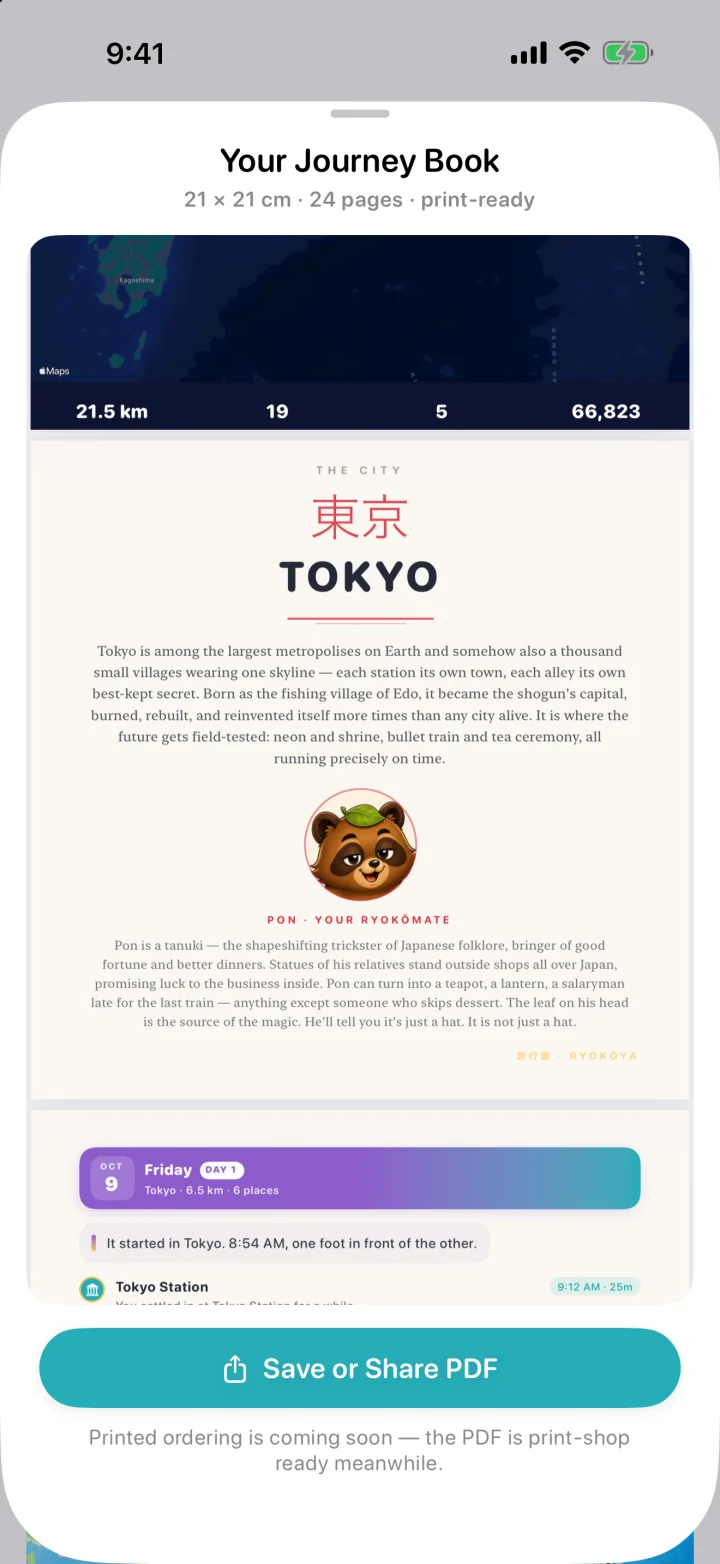
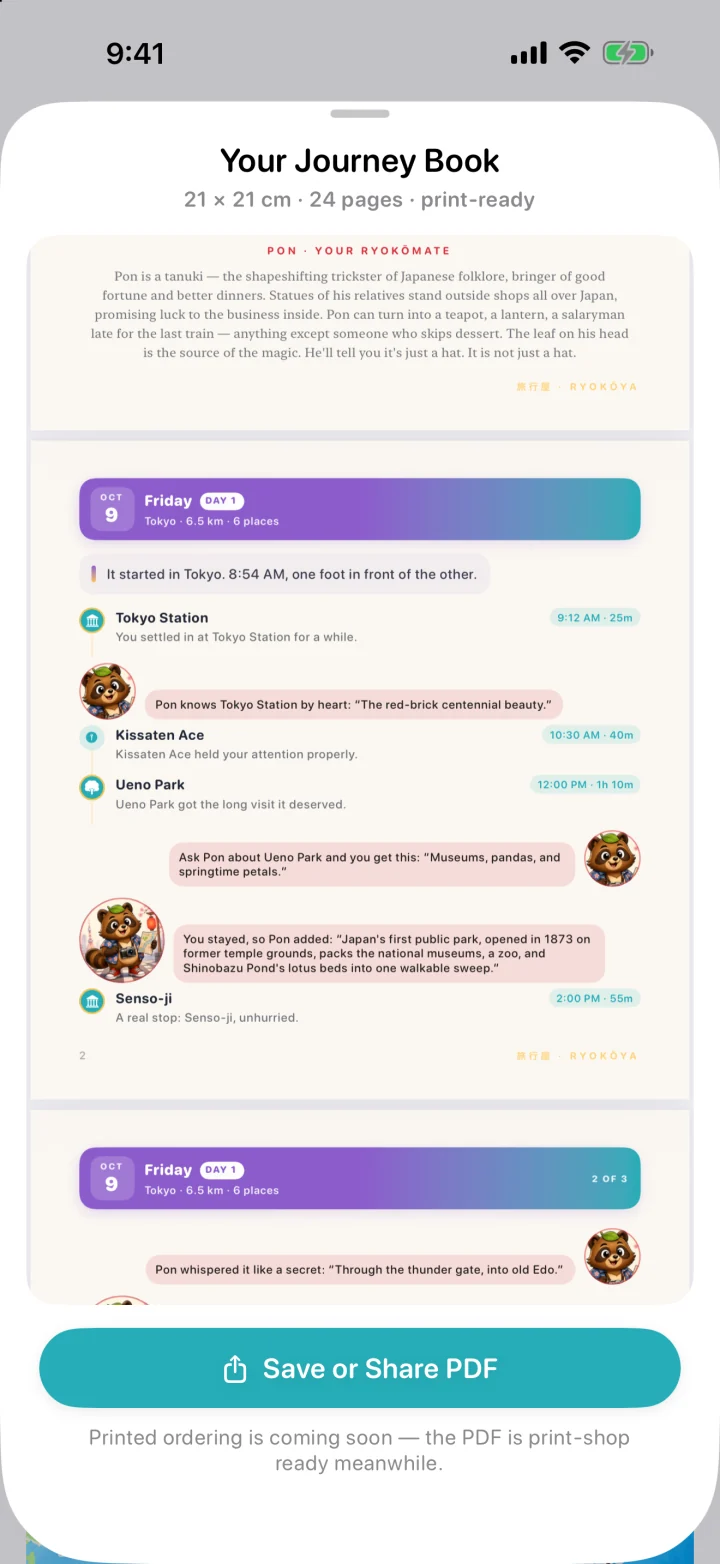
A trip or Journey can become a book with its map, story and places. Each city gets a page from its RyokōMate, and every day prints the way the journal tells it. Preview it free, then use Pro to save or share its PDF. In-app hardcover ordering is not available.
The city, by its RyokōMateA Journey’s book gives each city a page. Here Pon introduces Tokyo.
Every day, as the journal tells itEach day prints with its stops, its times and the companion’s lines.
What you keep
Your trips
Each trip’s route, stops, times, distance and steps.
Notes, photos and Moments
Everything you add along the way stays with its trip.
Summaries and stories
What End Trip writes: the stats, the story, the neighborhoods and the receipt.
Journeys
Groups of trips told as one. Deleting a journey keeps its trips.
Trips are saved in Ryokōya on this iPhone. With Ryokōya Pro, the iCloud Trip Vault also backs up every finished trip, photos included, and every Journey to your own iCloud, so a new iPhone can get them back. Restoring is always free.
Free, Pro and anything separate
Free
Recording trips, with Moments, notes, photos and videos
The summary, the story, the trip card and the receipt
Journeys
The trip’s collection in Favorites, and its stamps in the Passport
A preview of your trip book
Pro adds
Email Summary: the full recap, sent anywhere
Export GPX Route, to open your walk in other map apps
Saving or sharing your trip book as a PDF
Find, which matches photos from your library to your stops
Trip Radar: a nudge during a trip when a saved place is near
iCloud Trip Vault backup
Good to know
Tap the chevron at the top of a live trip to leave its map. The trip keeps recording, and the pill above the tab bar brings you back.
Allow location access While Using or Always, so trips keep recording with the screen off.
If your iPhone closes Ryokōya during a trip, the trip picks up again by itself when the app is back within six hours. After that, you’re asked whether to restore it.
Pause stops tracking and the timer until you resume.
The ✕ on a live trip cancels it and deletes what it recorded. To keep a trip, use End.
Once your trips span more than one month, the calendar button at the top jumps to any month.
Words you’ll meet in My Trips
Trip
One outing, from the moment you start it to the moment you end it.
Stop
A place where you stayed about a minute or more. Ryokōya names it for you.
Moment
A spot you mark yourself with the Moment button.
Trip Log
The running list of stops on a live trip.
Journey
Several trips told as one story, like a week away.
Receipt
A playful, shop-style receipt of a trip’s numbers, ready to share.
Chapter 02 · Explore
Find your next good detour.
Bonjour, I’m Gigi, Paris’s RyokōMate! Explore is the map I’d use to find a good café. Here’s how it works.
Your guide · Gigi, the little gargouille
Explore is a map for finding places to eat, drink, see and do, around you or anywhere in the world. Scout an area before you go, open any place to learn about it, and save what catches your eye. The map starts quiet: places appear when you tap Refresh Area.
Search any cityChart an areaSave what you like
Try it, step by step
Point the map
Move and zoom the map, tap the arrow button to come back to where you are, or tap the magnifying glass to search for a place or a city. Picking a result flies the map there.
Tap Refresh Area
The pill at the bottom charts the places around the middle of the map. Tap it again to dig deeper.
Choose what you see
The icons on the left switch kinds of places on and off: restaurants, bars, cafés, landmarks, museums, parks, shops, hotels, entertainment and other places. The clock button hides places that are closed right now.
Open a place
Tap a pin to see its hours, how far it is on foot, its website, a street-level Look Around view where there is one, and your own photos and comments. Hours, a website and Look Around depend on available information.
Keep it
Tap Save to add it to Favorites, Plan It to add it to a plan, or Share to make a card of it. During a trip, Tag adds it to the trip.
Fly to a plan
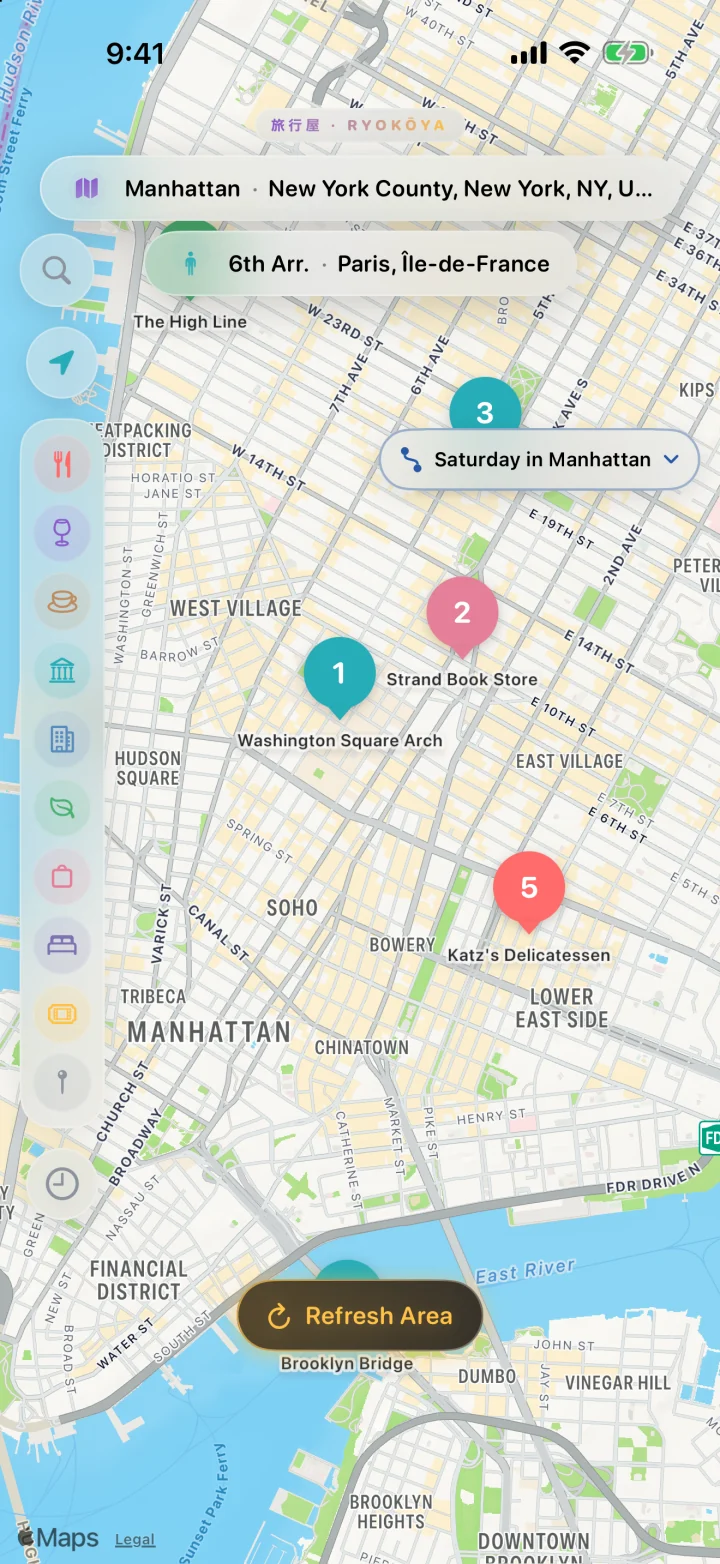
The Plans menu at the top right shows a plan’s numbered stops on the map. Choose None to go back to everything.
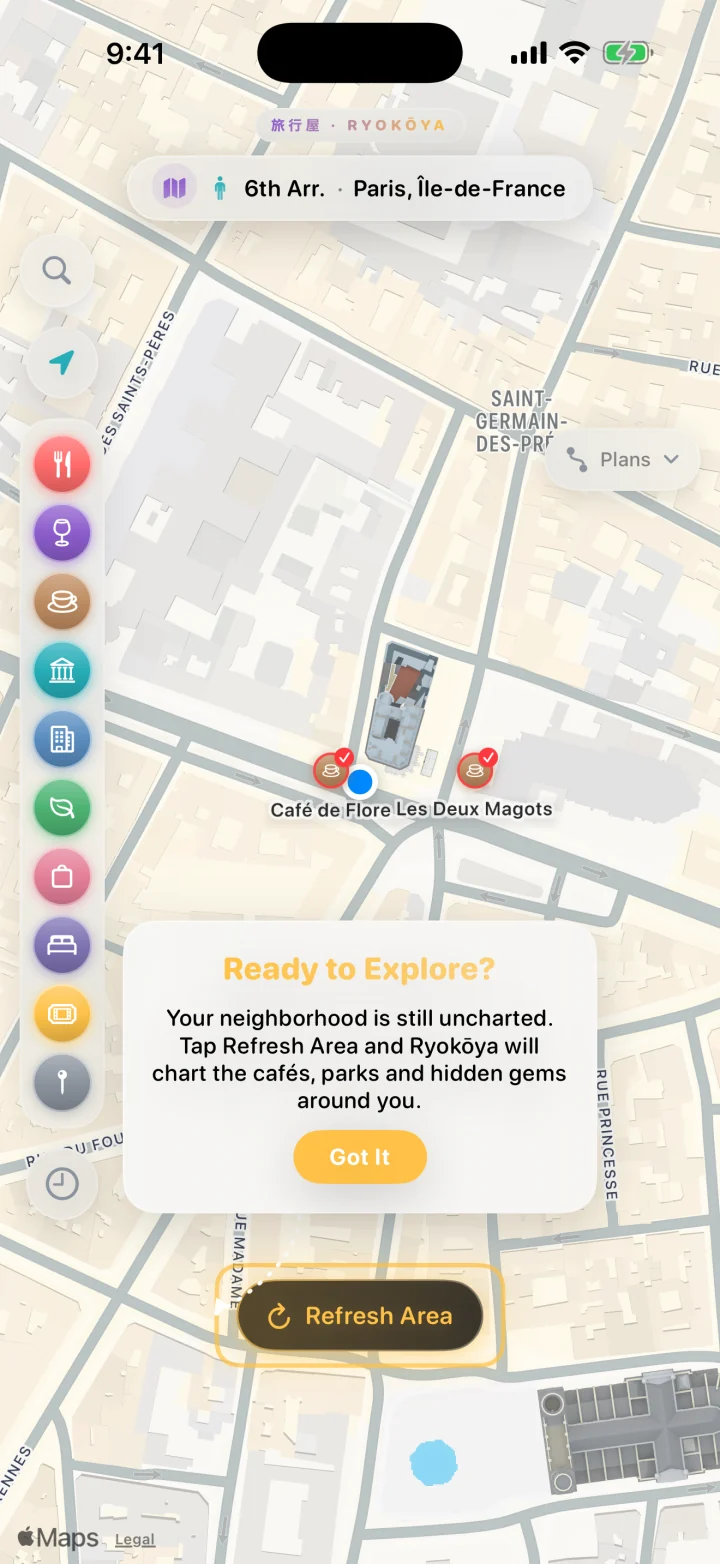
A quiet map is a starting pointExplore waits for you. Move the map, then tap Refresh Area.
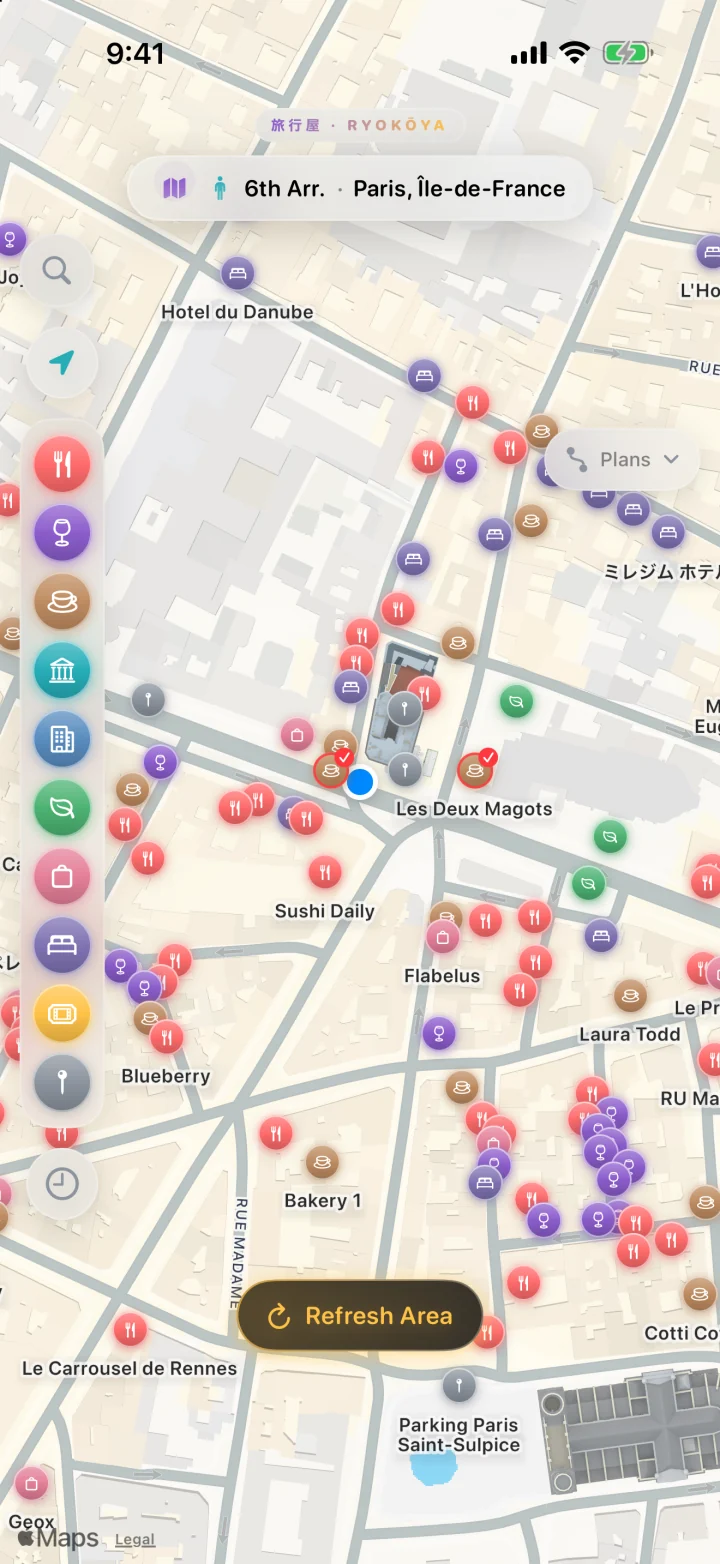
Saint-Germain, chartedOne tap on Refresh Area: cafés, restaurants, museums and shops around the middle of the map.
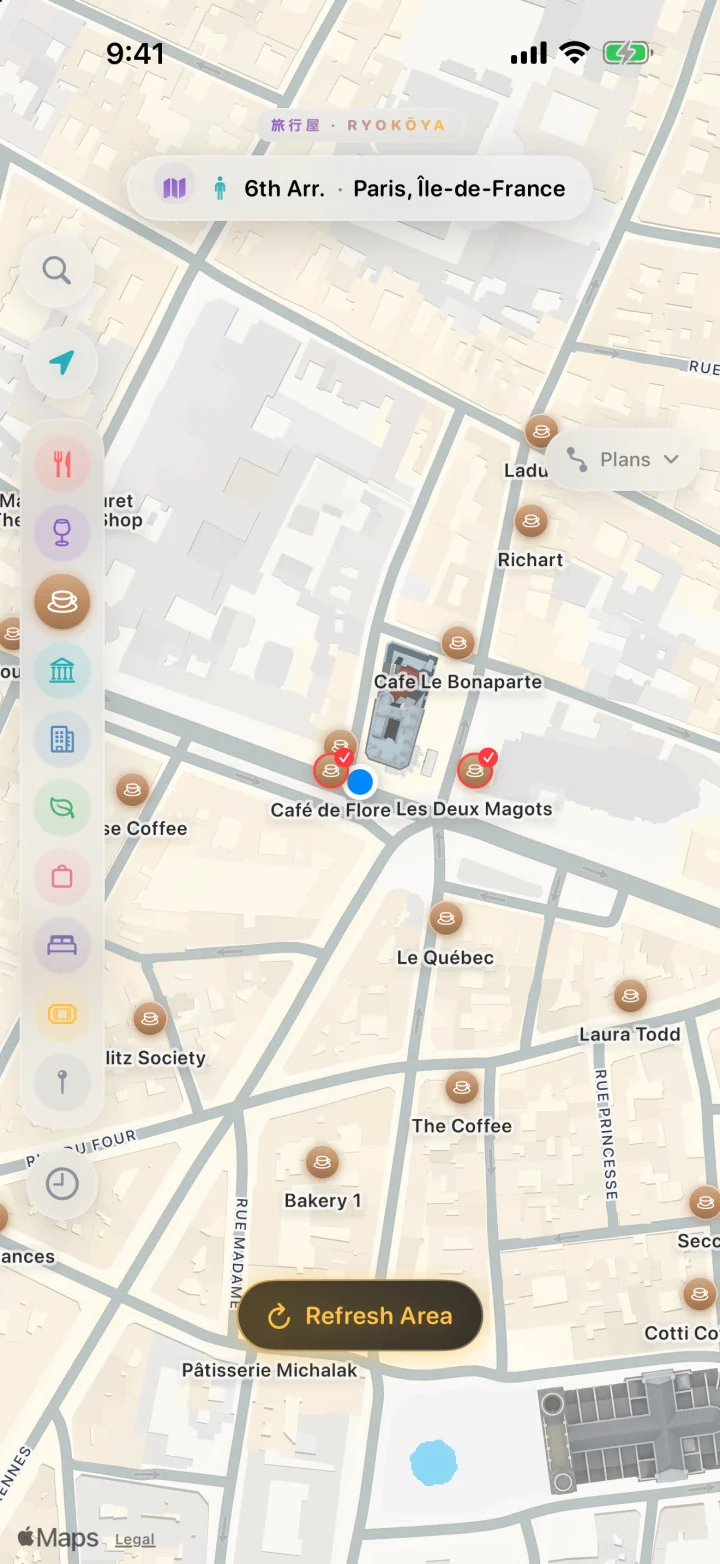
Just the cafés, pleaseTurn the other kinds of places off with the rail on the left.
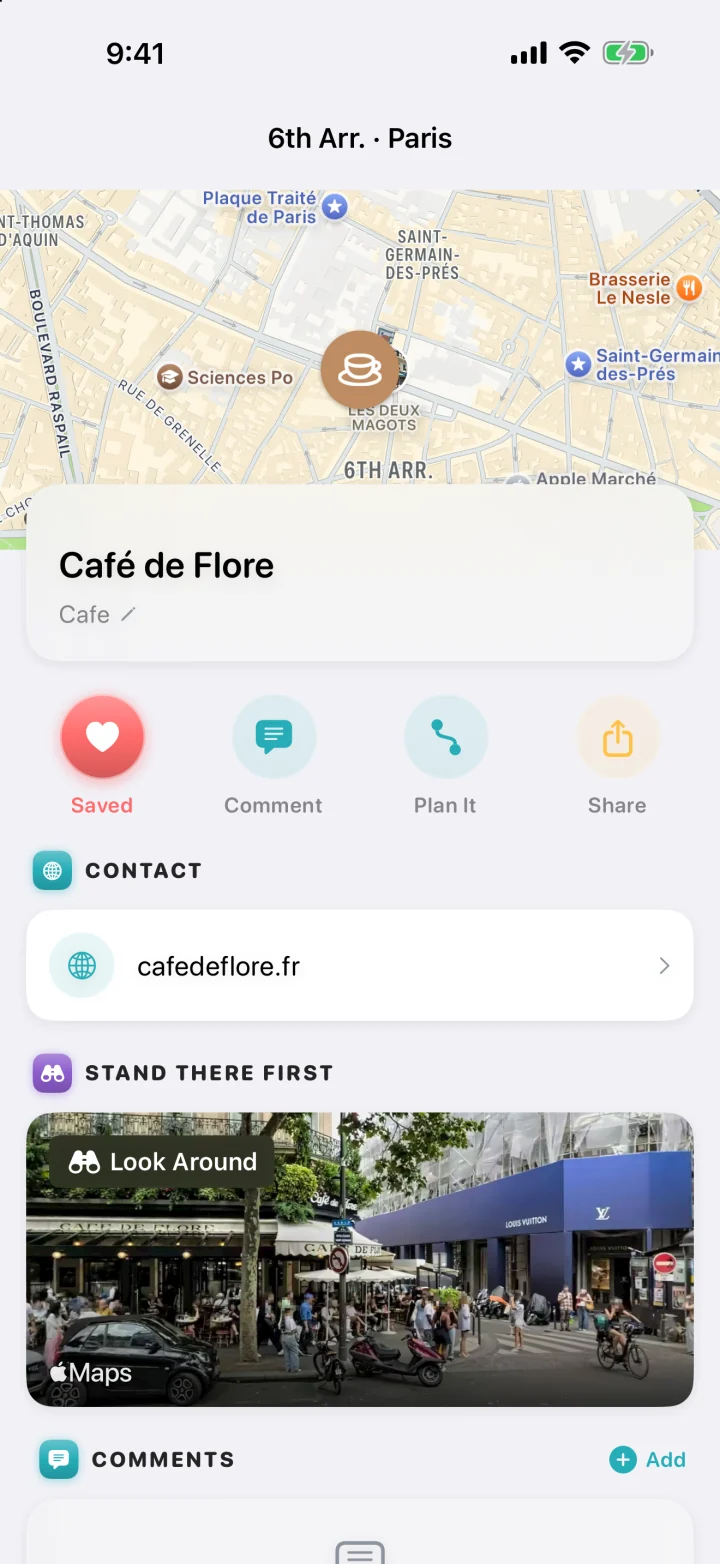
One pin, plenty to discoverCafé de Flore: Save, Comment, Plan It and Share, its website, and Look Around.
What you keep
Places you’ve charted
Kept on this iPhone, so they’re back instantly next time.
Your map settings
Which kinds of places are switched on, and where you left the map.
Category fixes
Tell Ryokōya a place isn’t really a café (the pencil beside its category) and the fix applies everywhere in the app.
What you save from Explore lives in Favorites and Plan It. Clear Maps Cache in Settings empties Explore’s stored map data without touching your favorites.
Free, Pro and anything separate
Free
Searching, charting and filtering the map
Place details, Look Around, your photos and comments
Saving, planning and sharing places
No Pro upgrade needed
Explore’s own search, filters and place tools are free. Related features such as unlimited active plans and Trip Radar have their own Pro access.
Good to know
An empty map isn’t broken: Explore never loads places on its own. Tap Refresh Area.
Search looks near you first. For somewhere far away, add the city’s name.
The banner at the top names the neighborhood and city on the map. When the map is far from you, a second one with a standing figure shows where you really are.
Want the tour of Explore’s buttons again? Open Settings from the gear on any other tab and tap Replay Explore Guide.
Words you’ll meet in Explore
Refresh Area
The pill at the bottom that loads places around the middle of the map.
Category rail
The column of icons on the left that filters kinds of places.
Open Now
Hides places known to be closed right now. Places without published hours stay on the map.
Been here
A teal ring with a walking figure: a place from one of your trips.
Chapter 03 · Plan It
A little structure for your wandering.
Hey, I’m Coo, New York’s RyokōMate. I’ve seen everything twice, so I like a plan. Here’s how to make one.
Your guide · Coo, the rooftop pigeon
Plan It is where you sketch an outing before you go: the places you want to visit, in the order you want to visit them. When the day comes, Ryokōya walks you from one stop to the next.
List your stopsAdd your datesGet walked there
Try it, step by step
Create a plan
Tap Create Your First Plan (later, Create a New Plan), give it a name and, if you like, the dates of your trip.
Add places
Open any place, in Explore, in Favorites or on a trip, tap Plan It and choose your plan, or create one there. Each place becomes a stop.
Put them in order
Drag stops to reorder them, or use a stop’s ••• menu to give it a day or remove it. With three or more stops, Ryokōya may offer to Optimize the order and save you some walking.
Check the details
With dates set, you get a countdown, a reminder on the first morning, the weather once it’s in the forecast, and Check Opening Hours to flag stops that are closed on your dates. Dates don’t make bookings or guarantee that a venue will be open.
Start Navigation
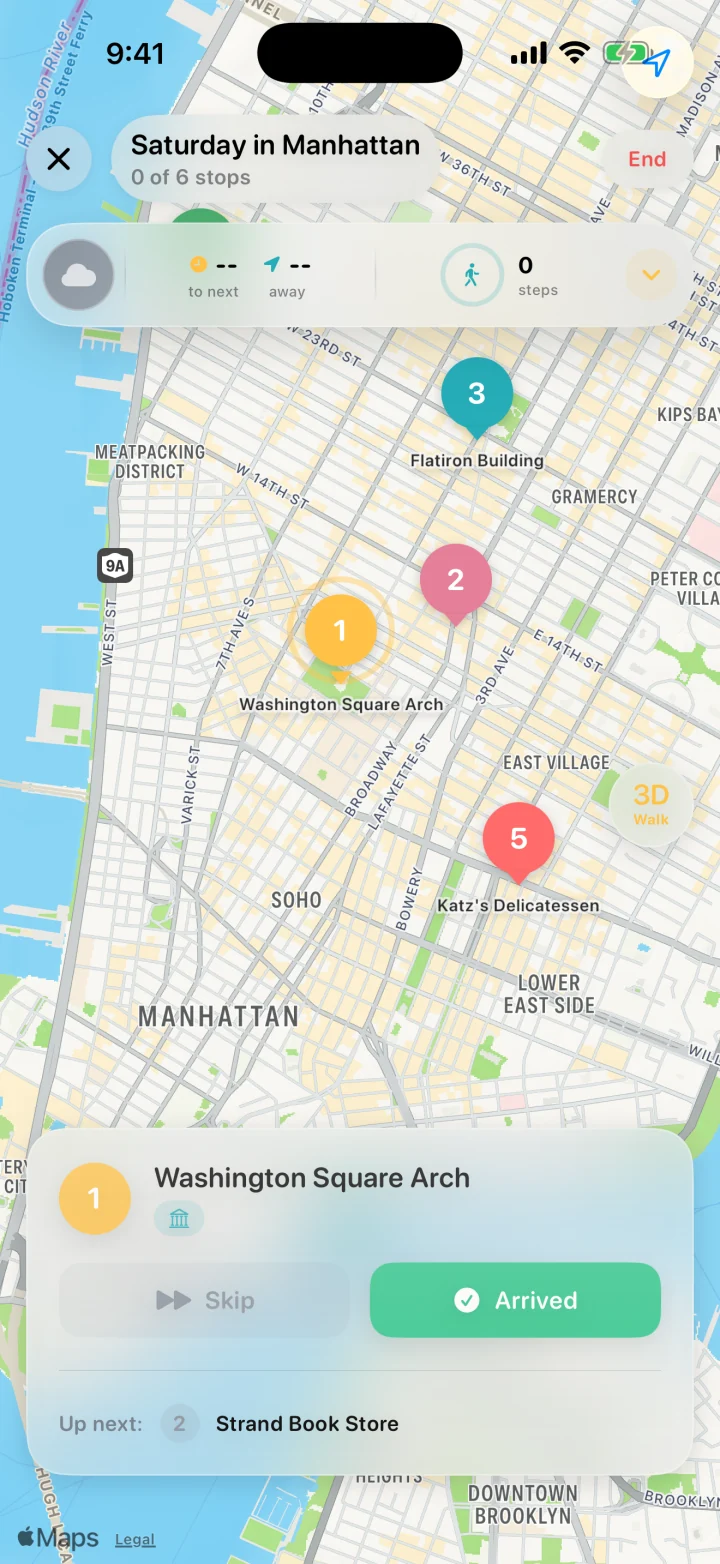
Ryokōya draws walking routes between stops and shows your next direction at the top. Tap Arrived at each stop (it also notices when you’re there), or Skip.
Preview it from afar
Far from your stops? Navigation lets you step through them with Next. Live walking guidance takes over once you’re there.
Share or tidy up
The ••• menu renames a plan, changes its icon, duplicates it, shares it as text with Apple Maps links, or deletes it.
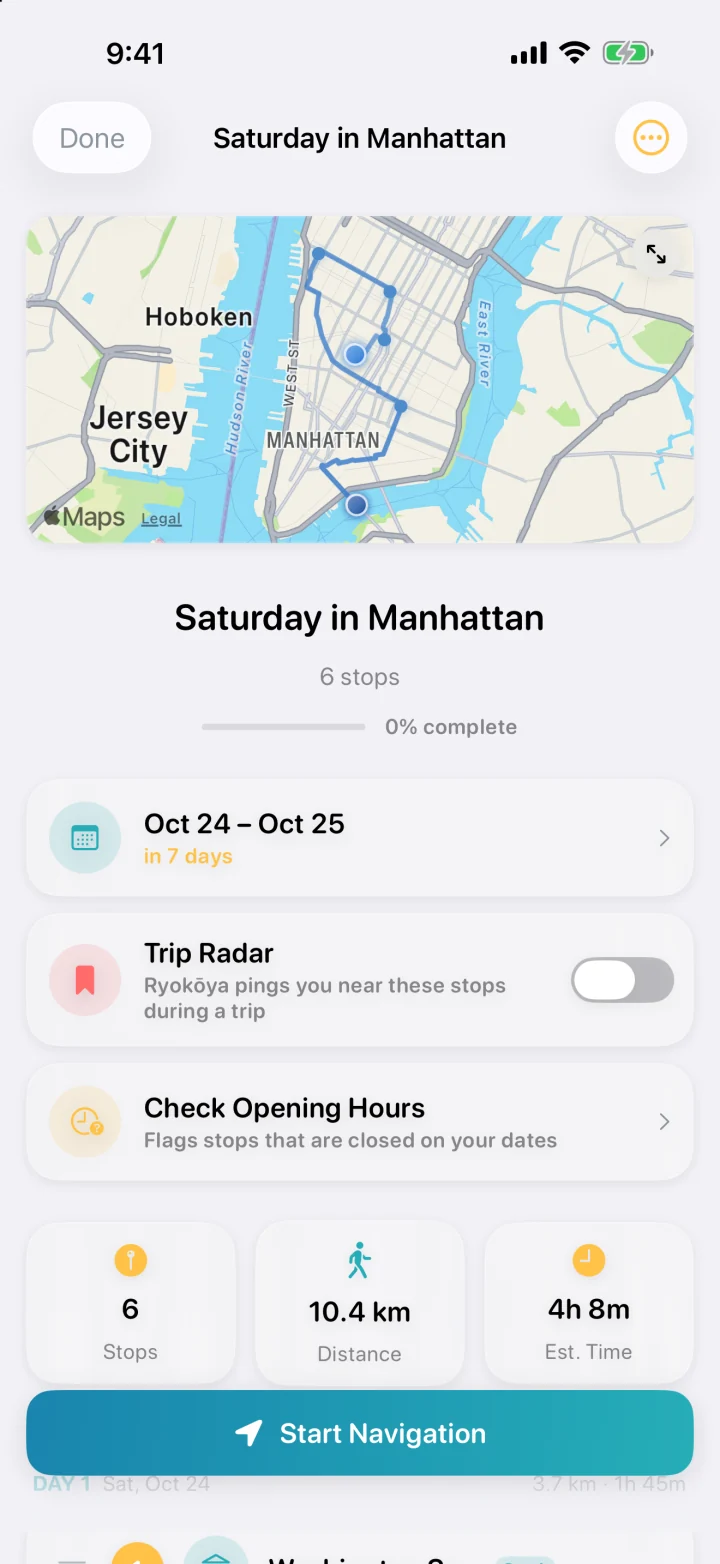
Saturday in ManhattanA sample plan of six New York Icons places, dated October 24–25, with a countdown and the walk’s length.
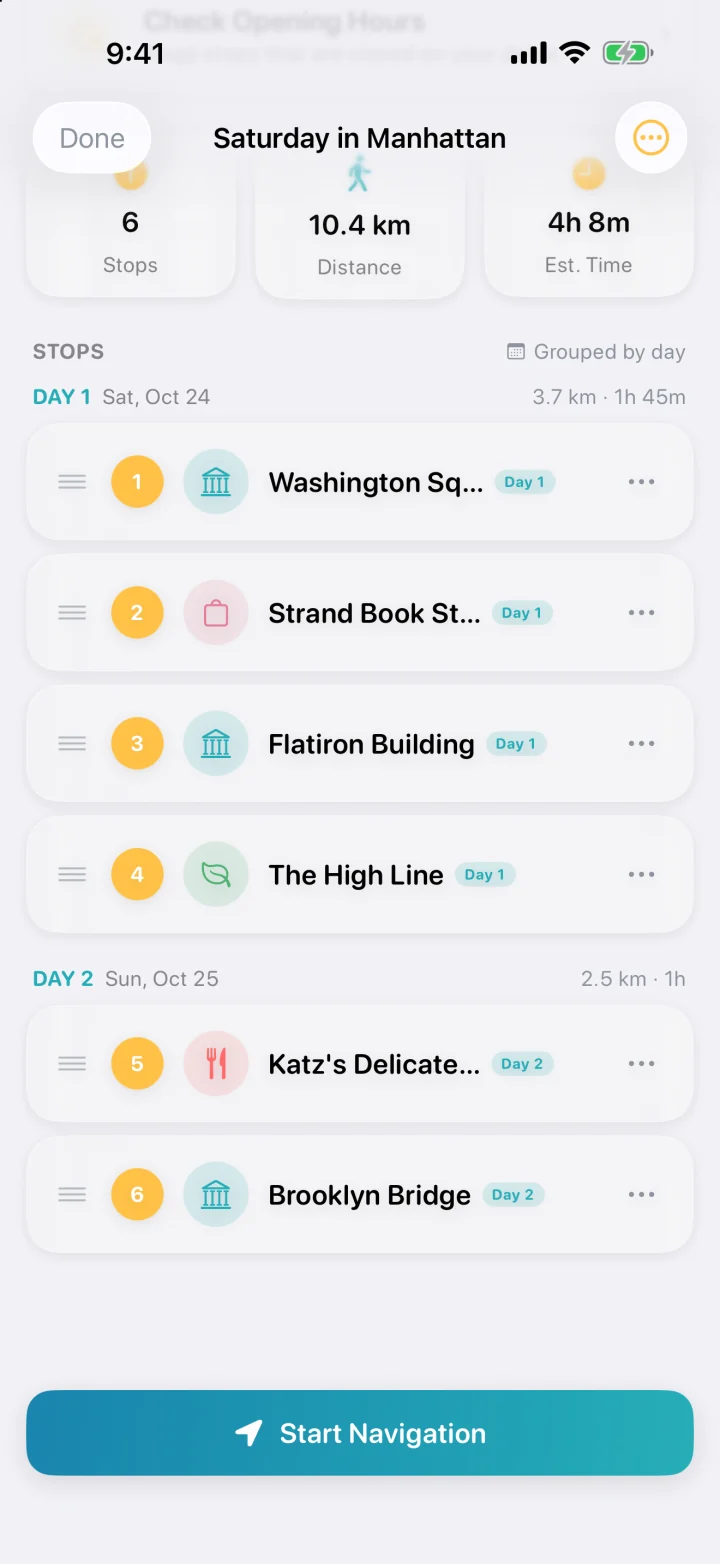
Day 1, Day 2Give stops a day and the plan groups them, each day with its own stops in order.
One stop at a timeWalking guidance numbers the stops; Arrived or Skip moves you on. It doesn’t record a trip.
The plan, on the Explore mapChoose it from Explore’s Plans menu to see its numbered stops.
What you keep
Your plans
Each plan’s name, icon, dates, stops and days.
Your progress
Which stops you’ve visited. Reset Progress starts a plan fresh.
Plans are saved on this iPhone. With Ryokōya Pro, the iCloud Trip Vault backs them up to your own iCloud too.
Free, Pro and anything separate
Free
Up to three active plans at a time (drafts and completed plans don’t count)
Dates, the countdown, weather and opening-hours checks
Walking navigation, previews from afar and sharing
Pro adds
Unlimited active plans
Walk View: a first-person, street-level view while you navigate
Trip Radar: a nudge near a plan’s stops during a trip
iCloud Trip Vault backup
Good to know
Give stops a day, and the plan groups them into Day 1, Day 2 and so on, each with its own distance and time.
Closing the navigation screen with ✕ keeps the guidance going. The Navigating banner in Plan It brings it back, and End stops it.
Duplicate copies a plan’s stops, but not its dates, icon or days.
Tap the map at the top of a plan for a full-screen view. A pin’s Navigate button hands off to your maps app.
Words you’ll meet in Plan It
Plan
A list of places to visit, in order.
Stop
One place in a plan.
Active, draft, completed
A plan with stops still to visit, a plan with no stops yet, and a plan whose stops are all done.
Planning from afar
Stepping through a plan before you get there.
Trip Radar
A heads-up near places you saved, while a trip is running.
Chapter 04 · Favorites
Keep the places worth remembering.
Olá, I’m Galo, Lisbon’s RyokōMate! I never forget a good place, and neither will you. Here’s how Favorites works.
Your guide · Galo, the folk-art rooster
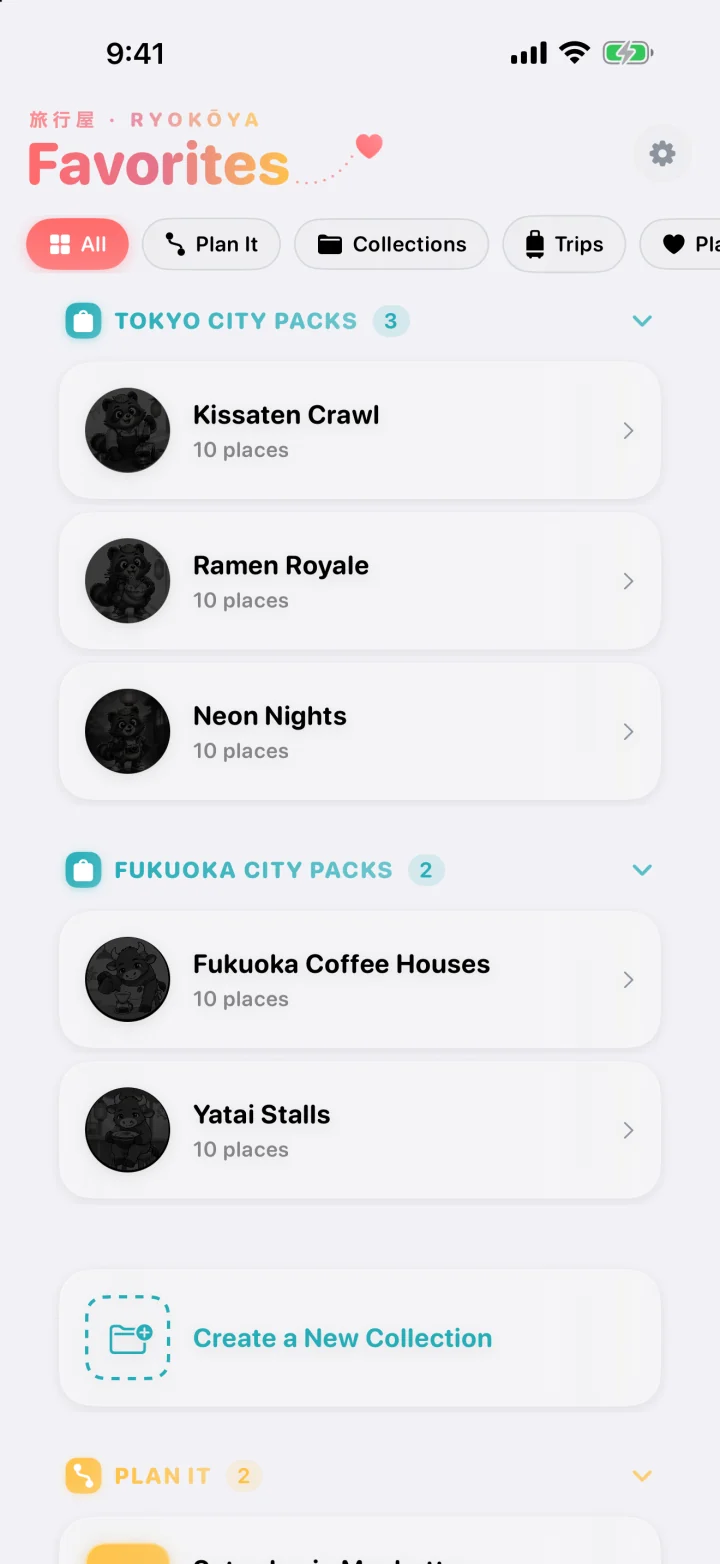
Favorites keeps the places you love, or want to try, all in one spot. Save single places, sort them into collections of your own, and find a ready-made collection from every trip you finish.
Saved placesYour collectionsOne for every trip
Try it, step by step
Save a place
Open any place, in Explore, on a trip or in a plan, and tap Save. Choose Favorites Only, or put it straight into a collection.
Make a collection
Tap Create a New Collection and give it a name, an icon, a color and, if you like, a description. Trip Radar on a collection is an optional Pro feature.
Let your trips add to it
Every trip you end adds a collection of the places you visited, named after the trip.
Filter the view
The chips at the top show All, Plan It, Collections, Trips or Places. Places can narrow down to one kind, like cafés.
Open a collection
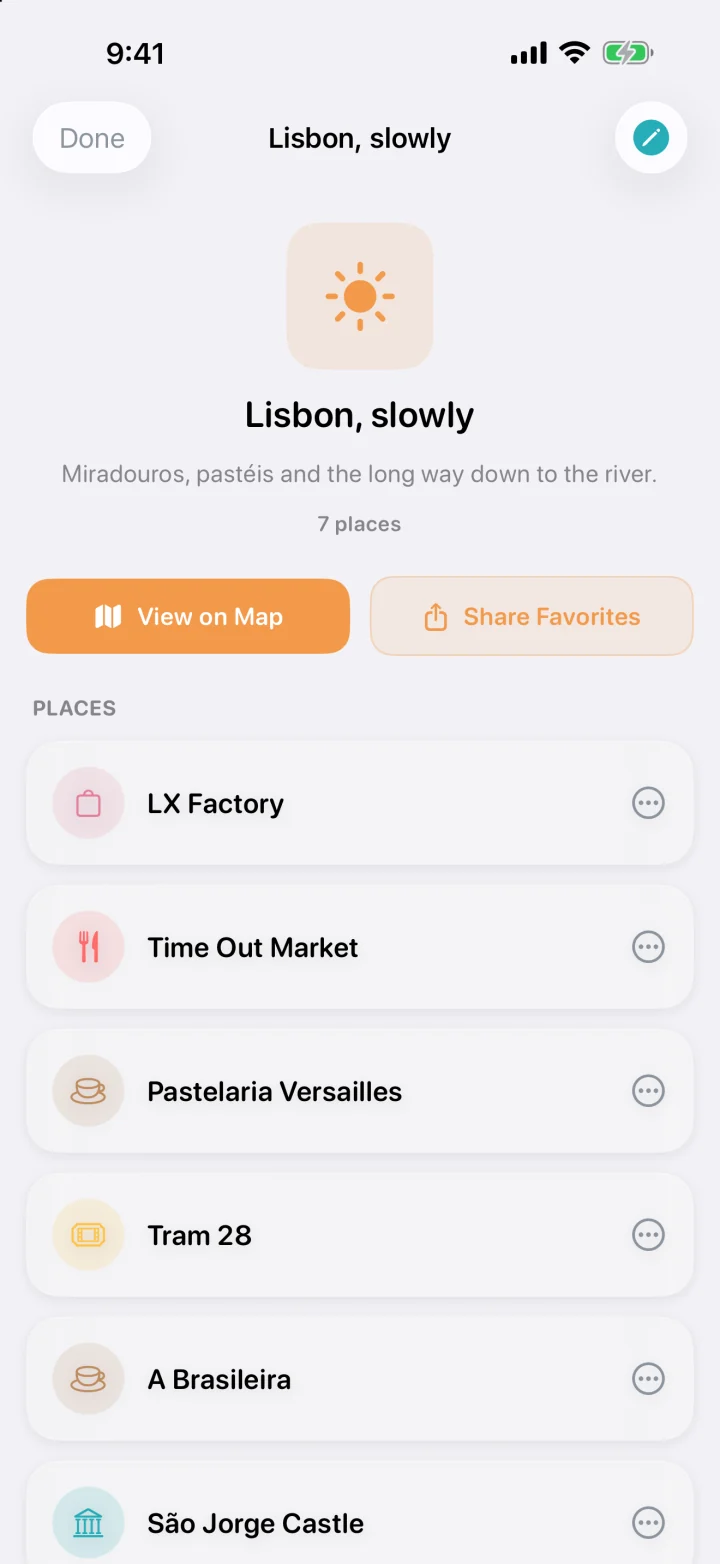
See its places, tap View on Map, edit it with the pencil, or delete it. Deleting a collection keeps its places in Favorites. A saved collection is not itself a recorded trip.
Share it, or walk it again
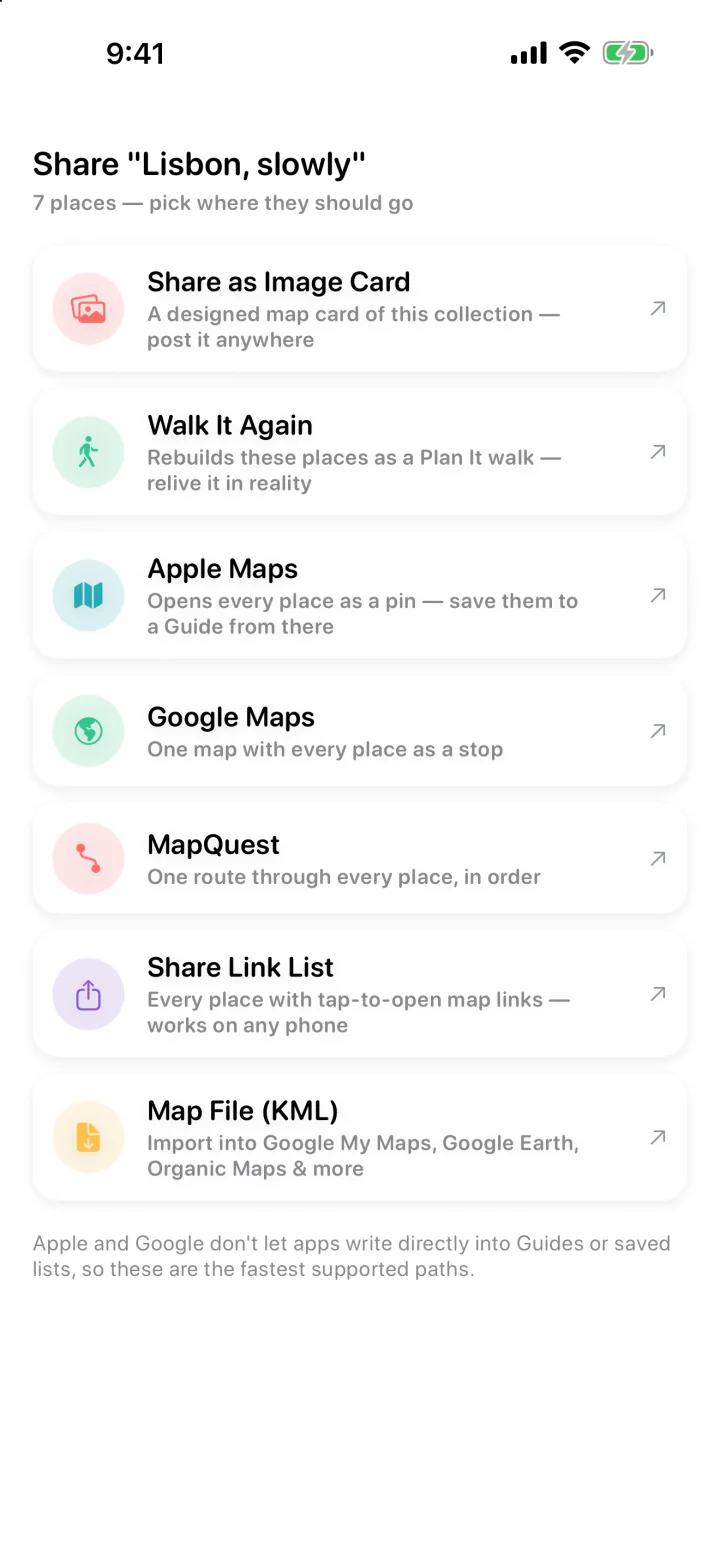
Share Favorites makes an image card or a list of links, opens the places in Apple Maps, Google Maps or MapQuest, exports a map file, or turns the collection into a new plan with Walk It Again.
Your places have a homePack collections, your own collections and every saved place, with chips to narrow the view.
Lisbon, slowlyA sample collection of seven Lisbon places. View it on the map, share it or edit it.
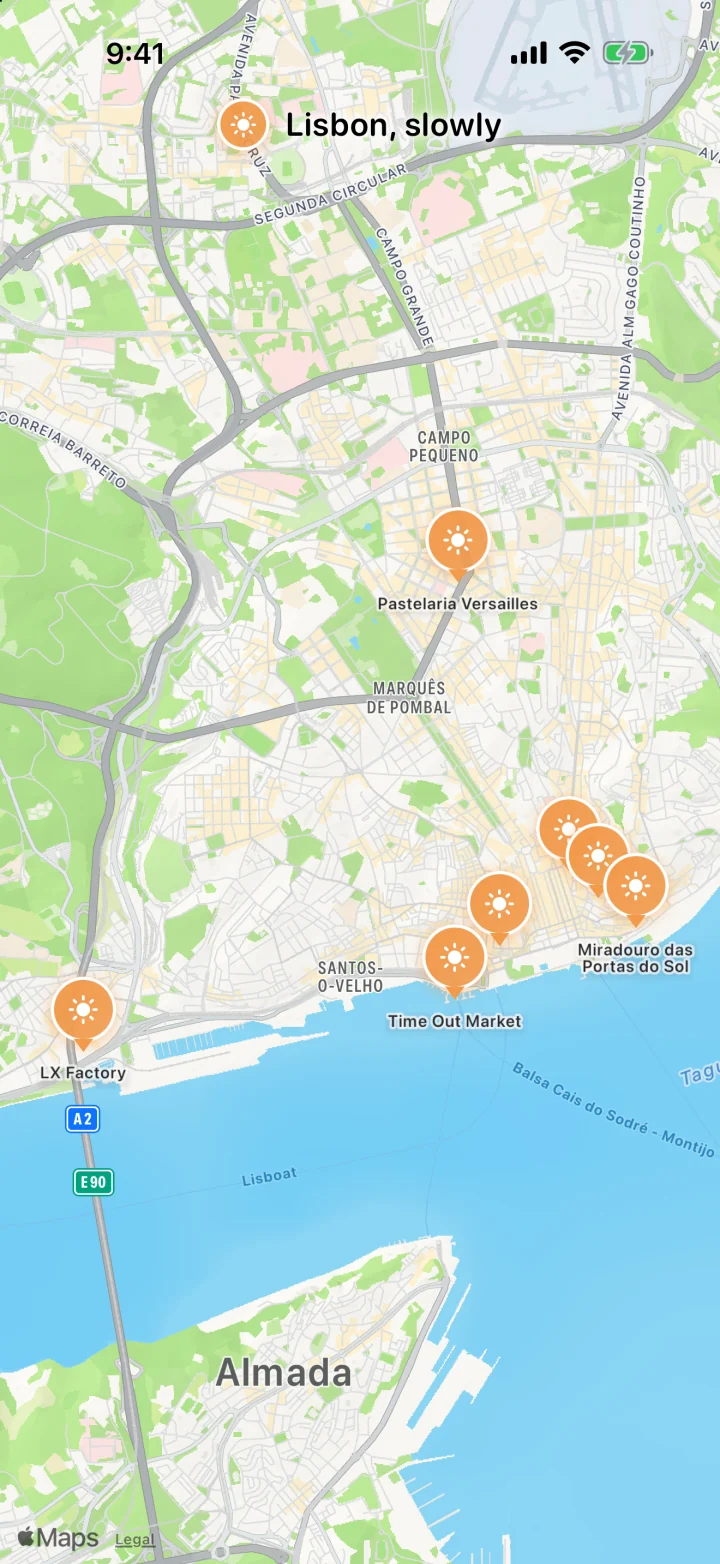
The collection, on its mapEvery place as a pin, from LX Factory to the castle. A collection is not itself a recorded trip.
Choose where your places goAn image card, Walk It Again, Apple Maps, Google Maps, MapQuest, a link list or a KML file.
What you keep
Your favorites
A saved copy of each place: its name, address, category, website and your notes. It stays even if the original listing disappears.
Your collections
Each one’s name, icon, color, description and the places inside.
Trip collections
Made for you when a trip ends.
Favorites and collections are saved on this iPhone. With Ryokōya Pro, the iCloud Trip Vault backs them up to your own iCloud too.
Free, Pro and anything separate
Free
Saving places and making collections
Trip collections
Maps, image cards, link lists and map files
Pro adds
Trip Radar on a want-to-go collection: a nudge when you’re near one of its places during a trip
iCloud Trip Vault backup
Good to know
A place sits in one collection at a time. Favorites Only keeps it out of all of them.
Removing the last place from a collection deletes the empty collection.
Tapping Saved on a place’s page removes it from Favorites right away.
Google Maps and MapQuest routes take a collection’s first 10 places.
Words you’ll meet in Favorites
Favorite
A place you saved.
Collection
A named group of favorites, like Best Coffee Spots.
Trip collection
A collection Ryokōya makes from the places on a finished trip.
Want-to-go list
A collection with Trip Radar on, for places you haven’t been to yet.
KML
A map file that Google My Maps, Google Earth and Organic Maps can open.
Chapter 05 · Passport
Proof you went outside.
Hello, I’m Kon, Kyoto’s RyokōMate. Your Passport keeps everything you earn on foot: stamps, crowns, and RyokōMates like me.
Your guide · Kon, the white kitsune
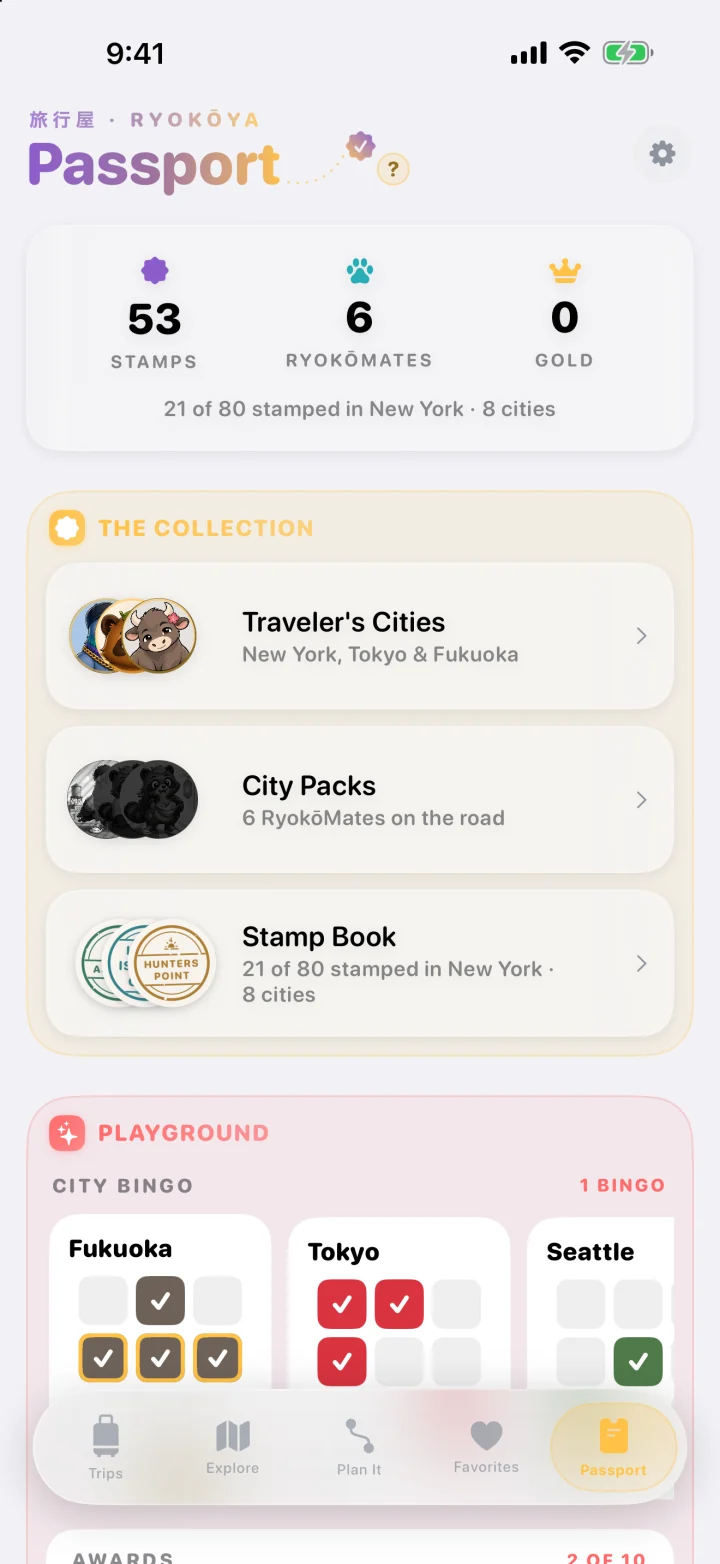
The Passport holds everything you earn on foot. Spend time in a neighborhood and its stamp is pressed into your Stamp Book. Visit the places in a City Pack and its RyokōMate, a city’s own character, comes to life, all the way to gold. Crowns, City Bingo and awards round it out.
Neighborhood stampsRyokōMatesCrowns and games
Try it, step by step
Walk on a trip
Stop somewhere in a neighborhood, or wander it for a while, and its stamp is pressed. Just passing through, or riding through on a train, doesn’t count.
Open the Stamp Book
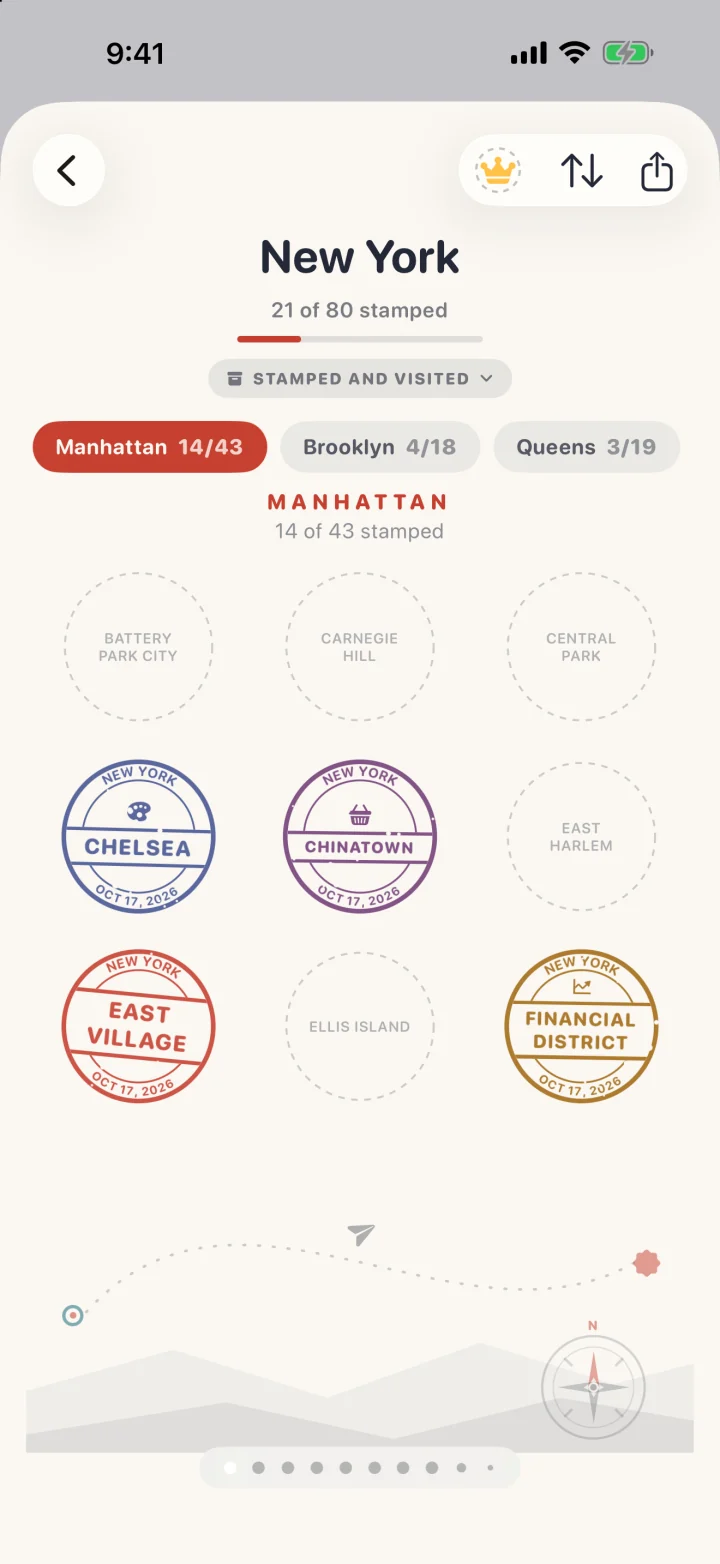
Each city has its own pages of stamps. Tap one to see when you first earned it, or to share it or the whole city page. In Progress keeps nearby or hand-picked cities close; Stamped and Visited holds the others.
Meet the RyokōMates
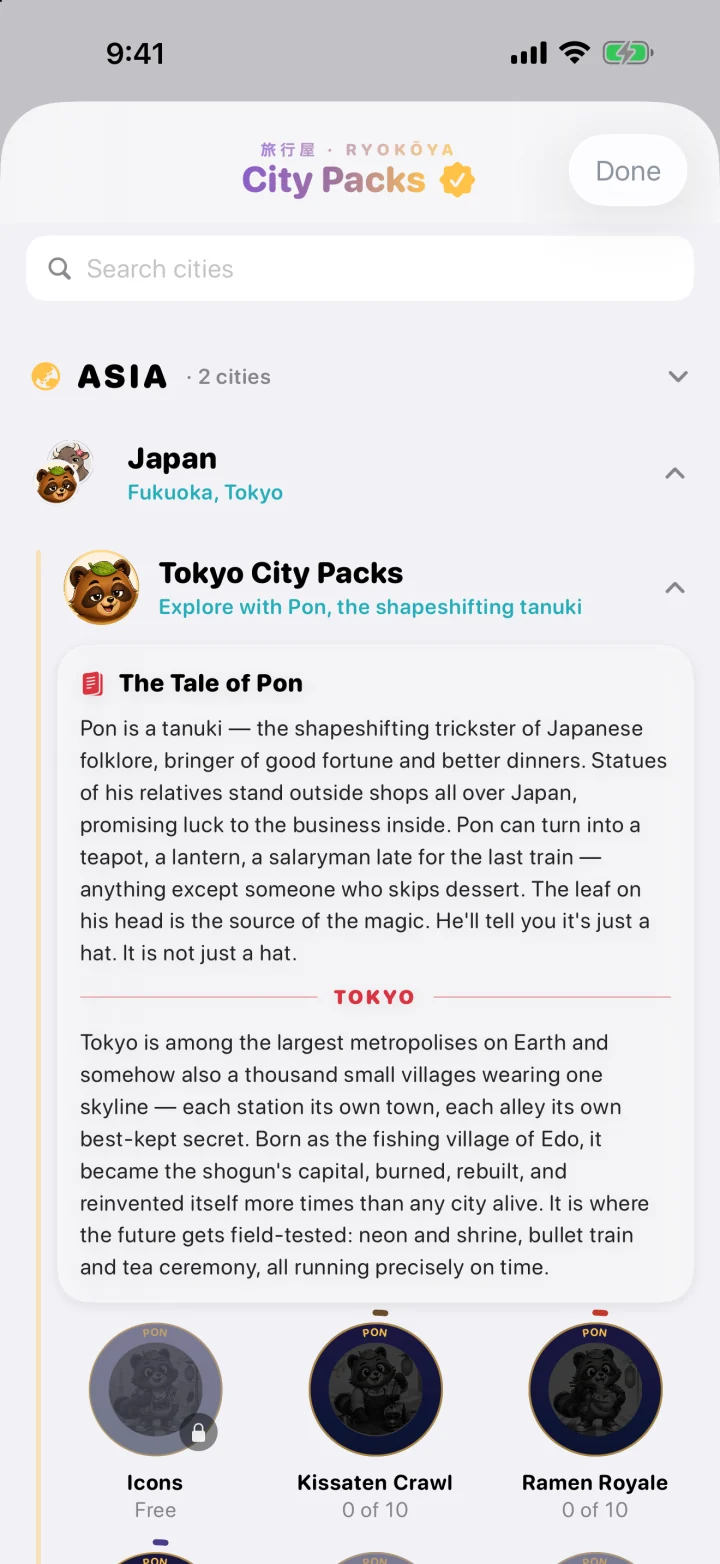
Open City Packs. Every city has a free starter pack to add, and more packs to buy, each a hand-picked list of places. Across 51 cities there are 333 packs; paid packs and city bundles are separate from Pro.
Visit pack places
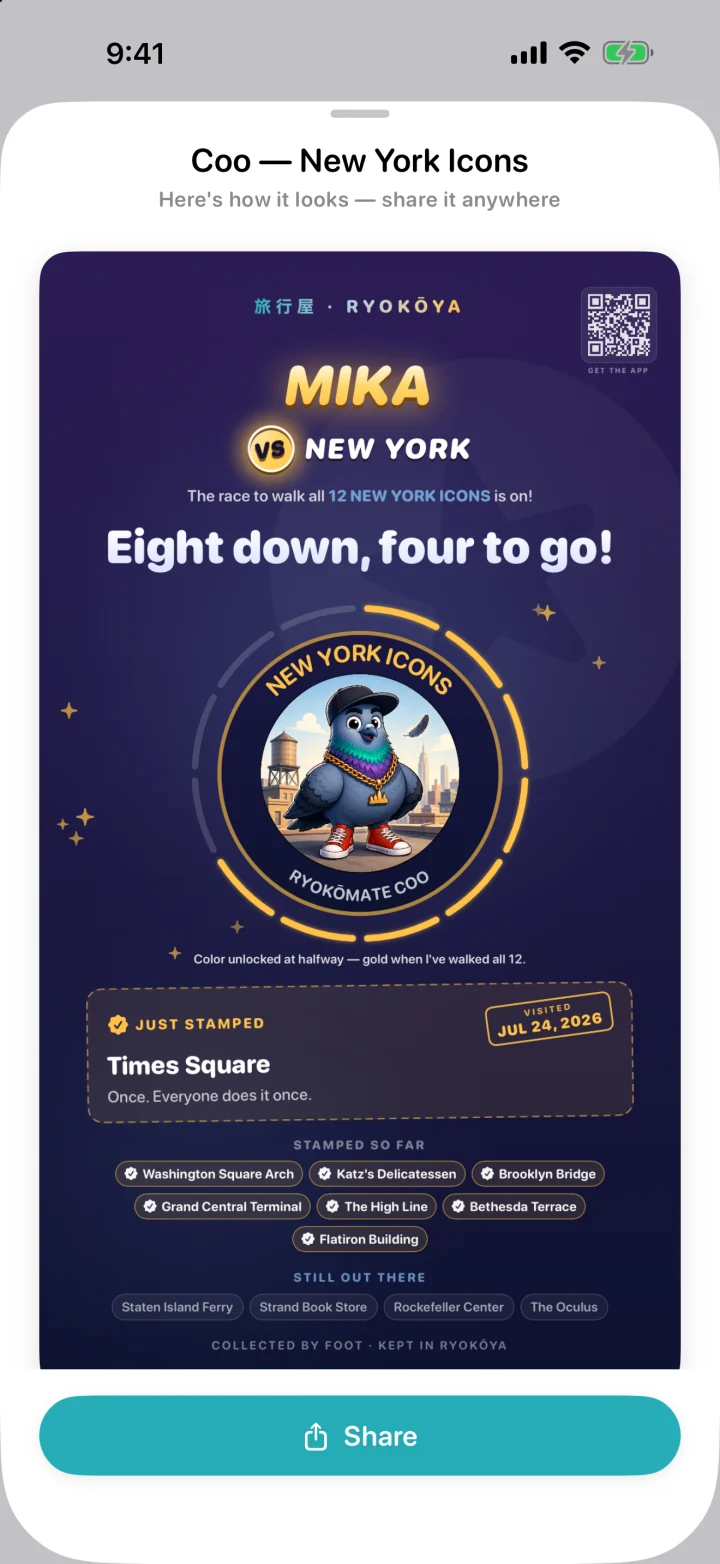
Stop at a pack’s places on your trips. Its RyokōMate wakes up at your first visit, shows its full colors at halfway, and comes home in gold once you’ve been to them all.
Win crowns
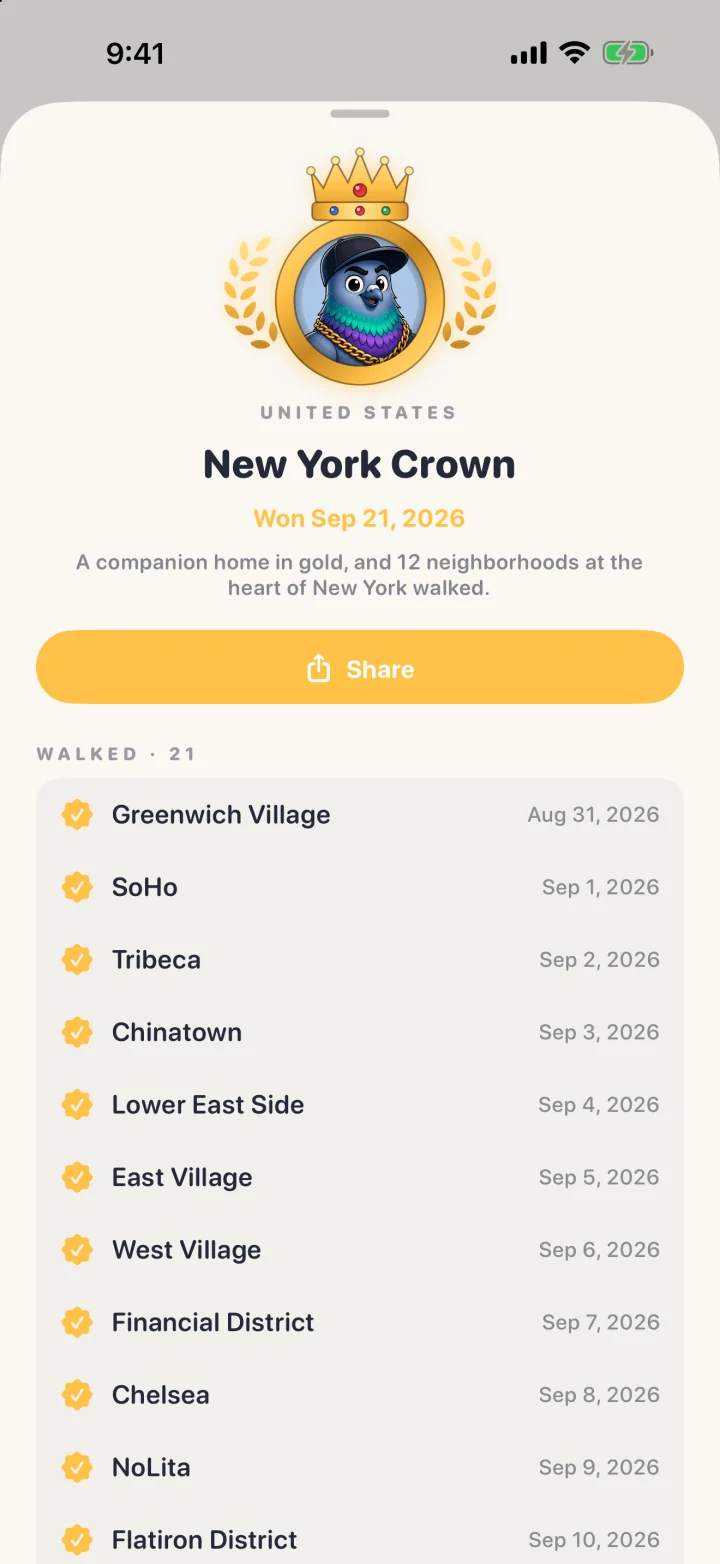
Crowns reward whole areas: a city’s heart, a district, or a themed set of neighborhoods. They’re at the end of each city’s Stamp Book; tap one to see what’s left to walk.
Play in the Playground
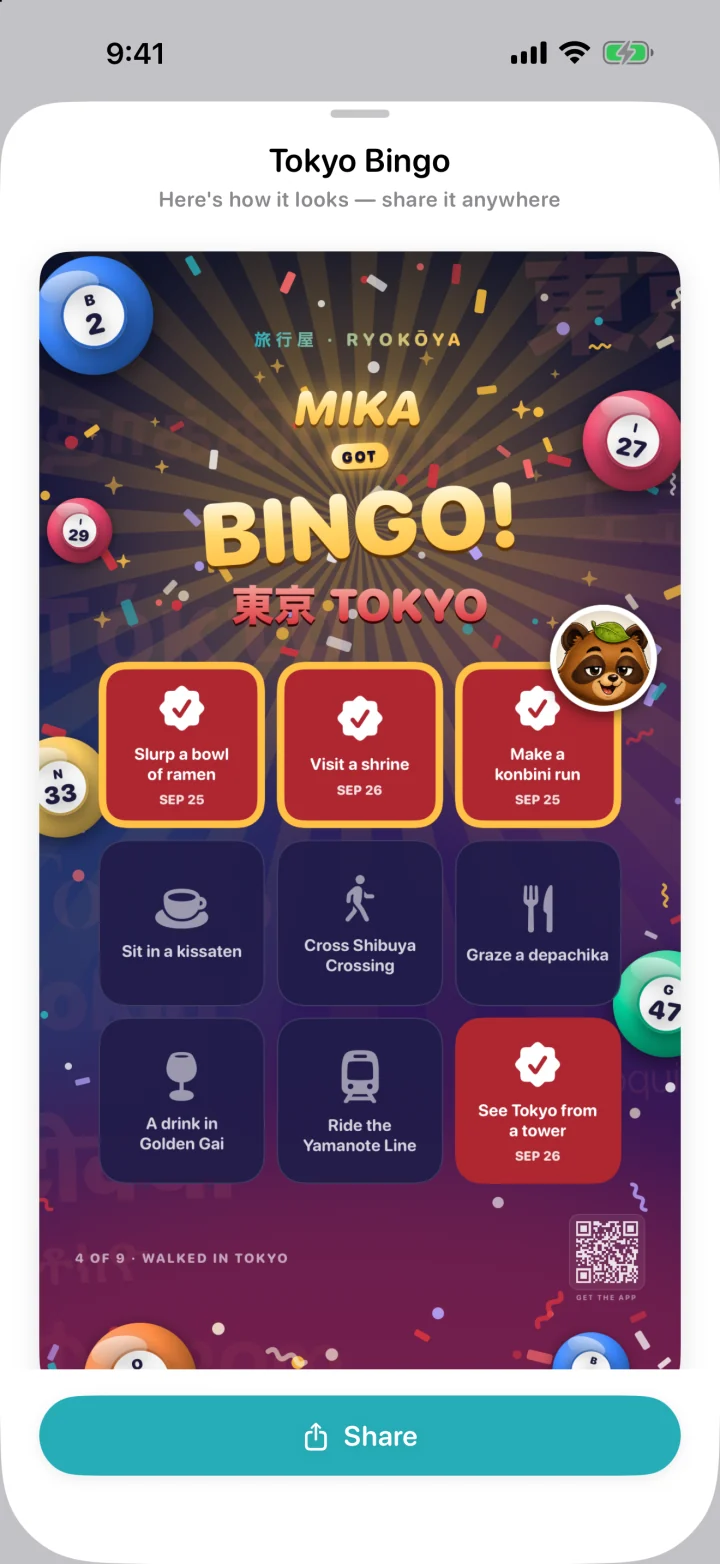
City Bingo fills in from your trips, awards celebrate feats like a 20 km day or a night out past 11 PM, and On This Day brings back a trip from this date.
Always Collecting, if you like
Turn it on and pack places can count even when no trip is running, when you stay at one for ten minutes or more.
Everything you earned on footStamps, RyokōMates and gold at the top; the collection and the Playground below.
Every seal has a place and a dayNew York’s pages: the neighborhoods walked are pressed, the rest wait in gray.
Meet Pon, and Tokyo’s packsEvery city has a free starter pack. A pack’s RyokōMate waits as a silhouette until your first visit.
Coo, partway to goldNew York Icons, eight places down: full color at halfway, gold once you’ve been to all twelve.
See what is left to walkA crown lists the neighborhoods you walked, with their dates, and what remains.
Three in a row. A proper celebration.Tokyo’s Bingo card from the sample week, ready to share.
What you keep
Stamps
Every neighborhood you’ve stamped, with the date you first earned it.
City Packs and RyokōMates
The packs you own, and how far each RyokōMate has come.
Crowns, Bingo and awards
Worked out from your trips, so they keep up as you walk.
Your Passport is saved on this iPhone. With Ryokōya Pro, the iCloud Trip Vault backs up your stamps, packs, pack progress and badges too. Packs you bought always come back with Restore Purchases in Settings.
Free, Pro and anything separate
Free
Stamps, the Stamp Book and every crown
A free starter pack in every city
City Bingo, awards and On This Day
Always Collecting
Pro adds
iCloud Trip Vault backup of your stamps, packs, pack progress and badges
Bought separately
More City Packs, one at a time or as a city bundle. They’re yours to keep, and they aren’t part of Pro.
Good to know
Tap one of the big numbers at the top to see the list behind it.
On a trip, ten minutes inside a pack’s park, landmark or museum counts, whatever the stop ends up being called.
Visits from before you got a pack count too, so adding one can light up places you’ve already been.
Always Collecting is off until you turn it on, and it needs location access set to Always to notice pack places while Ryokōya is closed.
The Playground fills in from finished trips, so new Bingo squares and awards appear after you end a trip.
Words you’ll meet in Passport
Stamp
Proof you spent time in a neighborhood.
Stamp Book
Your book of stamps, with pages for each city.
City Pack
A hand-picked list of places in a city, with its RyokōMate.
RyokōMate
A city’s own character, like Kon the white kitsune in Kyoto. Each pack’s mate wakes, colors in and turns gold as you visit its places.
Gold
The last stage: every place in a pack visited.
Crown
A prize for walking a whole area: a city’s heart, a district, or a themed set of neighborhoods.
Always Collecting
Lets pack places count between trips.
Put it all together
One outing. Plenty to bring home.
Explore · Favorites · Plan It
Tomorrow looks promising.
Use Explore to search a city and chart a neighborhood.
Save a few discoveries to Favorites, or tap Plan It on their place sheets.
Arrange the stops in Plan It, add days and check opening hours when available.
Start Navigation when you’re there. Start a trip in My Trips as well to record the day.
At the end, enjoy what happened—even if your favorite discovery wasn’t on the plan.
My Trips · Journeys
A week worth keeping.
Start a trip each day you want to keep. End it when the outing is over.
Once you have several finished trips, look for a Journey suggestion or choose Make a journey to select them yourself.
Read the days and city chapters together. A Journey groups your trips; it doesn’t replace them, and a trip can belong to several.
Deleting a Journey keeps its trips. With Pro in version 1.2.2, the Trip Vault backs up Journeys as well as their finished trips. Check the backup status before moving to a new phone.
Use its collection in Favorites to find the places. Visit them on a trip; a purchase alone earns no visits.
Read a crown’s checklist for another neighborhood to discover, or check your Bingo card.
Next time a friend asks where to go, share the collection or turn it into a new plan with Walk It Again.
The practical bits
Keep your memories close.
Permission to put the phone away.
Ryokōya is designed for iPhone on iOS 26.2 or later and is currently in English. Sign in with Apple creates the local account. A trip needs location access; While Using the App or Always can keep a trip you started recording with the screen off. Turn on Precise Location so the app can distinguish nearby places. Motion & Fitness supports motion detection and steps.
Always permission is needed for optional Always Collecting between trips. That switch starts off and does not record a route. Photo-library access is separate: attach pictures yourself, or use Pro’s Find/automatic matching for photos from your trip window.
Your iPhone, comfortably.
On iPhone Duo, Ryokōya stays in one window as you open, fold or close it, so the same trip keeps going. The app is still in English; on an iPhone set to Japanese, City Packs also recognize the Japanese names Apple Maps uses for their places.
Make it comfortable.
The gear in My Trips, Plan It, Favorites or Passport opens Settings. Explore has no gear of its own. Settings holds preferences, permissions guidance, purchases, Trip Vault, map-cache clearing and diagnostic-log export. Clearing Maps Cache doesn’t remove your favorites. To reopen a tab’s built-in guide, tap its name at the top of the tab.
Before you delete anything
Deleting a Journey keeps its trips. Deleting a favorites collection keeps its saved places. Deleting a trip removes that trip and its iCloud backup; that is different from removing the app.
Settings → Delete Account erases the cloud backup first, then local app data. If the cloud copy cannot be reached, deletion stops. Export anything you want to keep before using it. Removing the app alone leaves an existing cloud backup in place.
The Trip Vault: backup and restore.
Check the old phone first
Open Settings from a tab’s gear, then Trip Vault. With Pro and iCloud available, check that automatic backup is enabled and review its status. Finished trips back up as they end, and later edits follow when you leave the app; you do not need to tap Back Up Now for every change. Keep the old phone and your own exports until you have verified the restore.
Bring missing trips back
On the new iPhone, use the same Apple account and iCloud account. Open Settings → Trip Vault → Restore from iCloud. Restoring is free, even without a current Pro purchase. It fills missing trips; it does not overwrite a local version of the same trip.
Restore purchases separately
Settings → Restore Purchases asks Apple to restore paid access, including packs. It does not restore your recorded routes or rebuild your travel history. Trip Vault restore retrieves backed-up memories.
Take a copy with you.
Cards and collections
Free share cards and collection link lists/KML files let you share a result or reopen its places elsewhere.
GPX
Pro route export for other map tools. A GPX route is different from a collection’s KML places file.
Email and PDF
Pro Email Summary and PDF trip-book export keep a fuller recap. Book previews remain free.
Useful from the first walk
The journal is free. The extras are yours to choose.
Ryokōya
Free. Not a trial.
Unlimited trips, routes, stories and Journeys.
Manual Moments, notes, photos and videos.
Explore, favorites and collections.
Neighborhood stamps and crowns within supported coverage.
Receipts, City Bingo, awards and share cards.
Three active plans, walking guidance and book previews.
A free starter pack in each of 51 pack cities.
Restoring an existing Trip Vault backup.
Ryokōya Pro
Pro, when you want more.
Automatic Trip Vault backup of trips, Journeys and your library to your own iCloud.
Automatic photo matching at stops.
Email summaries and PDF trip-book export.
GPX route export.
Trip Radar for saved and planned places.
Walk View during navigation.
Unlimited active plans.
Pro is available monthly, yearly or as a one-time Lifetime purchase. The 30-day Trip Pass gives Pro access without automatic renewal. Paid City Packs and city bundles are separate one-time purchases; neither Pro nor Trip Pass includes them. See current prices for your region in the app.
To cancel an auto-renewing Pro subscription, use iOS Settings → your name → Subscriptions → Ryokōya. Canceling stops the next renewal and keeps access for the period already paid for. Apple handles purchase refunds.
Start with the free journal.Download Ryokōya, record a day, and decide about Pro later, from inside the app.
In Explore, move the map and tap Refresh Area. Search, locating yourself and choosing a plan are other ways to bring places into view. A quiet starting map is intentional.
A stop usually needs about a minute, and GPS and place listings can be imperfect. Confirm or Fix a guessed name; on a finished day use Add a Stop for something missed, or Not a Stop for an incorrect visit.
Yes. Trip recording, routes and stories work beyond City Pack destinations. Curated packs and neighborhood stamp maps cover 51 cities. Place information, signal, weather, hours and Look Around availability vary; the app does not guarantee every feature offline.
Does it keep tracking between trips?
Trip recording runs during a trip you start. Always Collecting is a separate, optional feature for nearby owned pack places, off by default. It uses geofences and a real stay rather than recording a route between trips.
A recent interrupted trip can resume when the app relaunches within six hours. Older interruptions offer a restore decision. Background recording still depends on iOS, permissions and signal. If a recording problem repeats, Support explains how to check permissions and export a field log.
Where does my data go?
Your records live on your iPhone, with optional Pro backup in your own private iCloud. There is no Ryokōya server holding your travel history. Maps, weather and other documented service queries still contact their providers. Field logs can contain precise location history; review one before choosing to send it.